Enable a connection for a project
Choose who can add a connection to projects or administer it. Project members use configured connections through their project role.
Open project connections
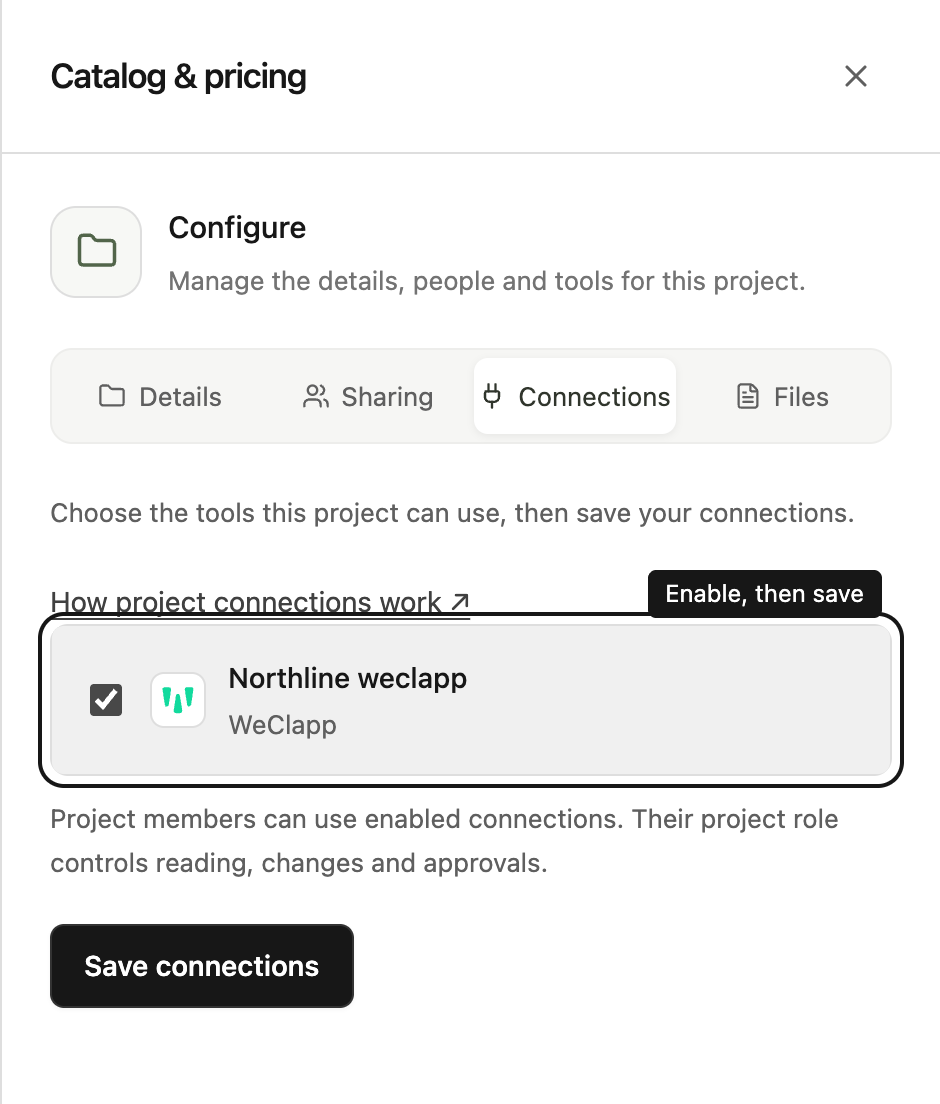
Open a project and select Project actions → Configure, then Connections. If the chat shows a connection warning or a new-connection notice, its Open project connections button takes you straight to this tab.
A project Manager can enable a connection they have Use in projects access to. Workspace owners and administrators can enable any workspace connection. An invited Manager can keep or remove connections already configured in their project without this separate setup grant.
Select and save
- Find the connection you want to use.
- Select its checkbox.
- Select Save connections.
- Return to the chat and send your next request.
The highlighted row helps you spot a connection you recently added. You make the selection yourself; the notice does not automatically enable anything.
If the list is empty, select Open workspace connections. A workspace administrator can create a connection there. If you cannot select a connection, ask an administrator to check your connection permissions.
Understand what enabling means
Project members use the connections enabled for their project without a separate connection grant. Viewers follow results and download shared files. Contributors ask questions and prepare changes. Managers also approve changes. Chat modes, connection approval rules and the business tool’s own access limits still apply.
Open Project actions → Configure → Sharing, choose the person or team, select Viewer, Contributor or Manager, and save. You do not need to grant connection access separately.
Notice a new connection
When you visit a chat after a connection was recently added, Steward may suggest enabling it for that project. Several new connections share one notice. If it is already enabled, a brief notice explains that it is available for your next request and then fades away; hover over it to keep it open.
These reminders are remembered in this browser for your account and workspace. Dismissing one hides it in every project of the workspace and does not change project settings. Different devices may show their own reminder.
Remove a connection from a project
A manager can clear its checkbox and save again. This changes the project’s selection, not the connection’s workspace configuration. Other projects can continue using their own enabled connections.