Connect ASA HOTEL
Set up the Reservation Service, test the connection, and understand ASA method permissions.
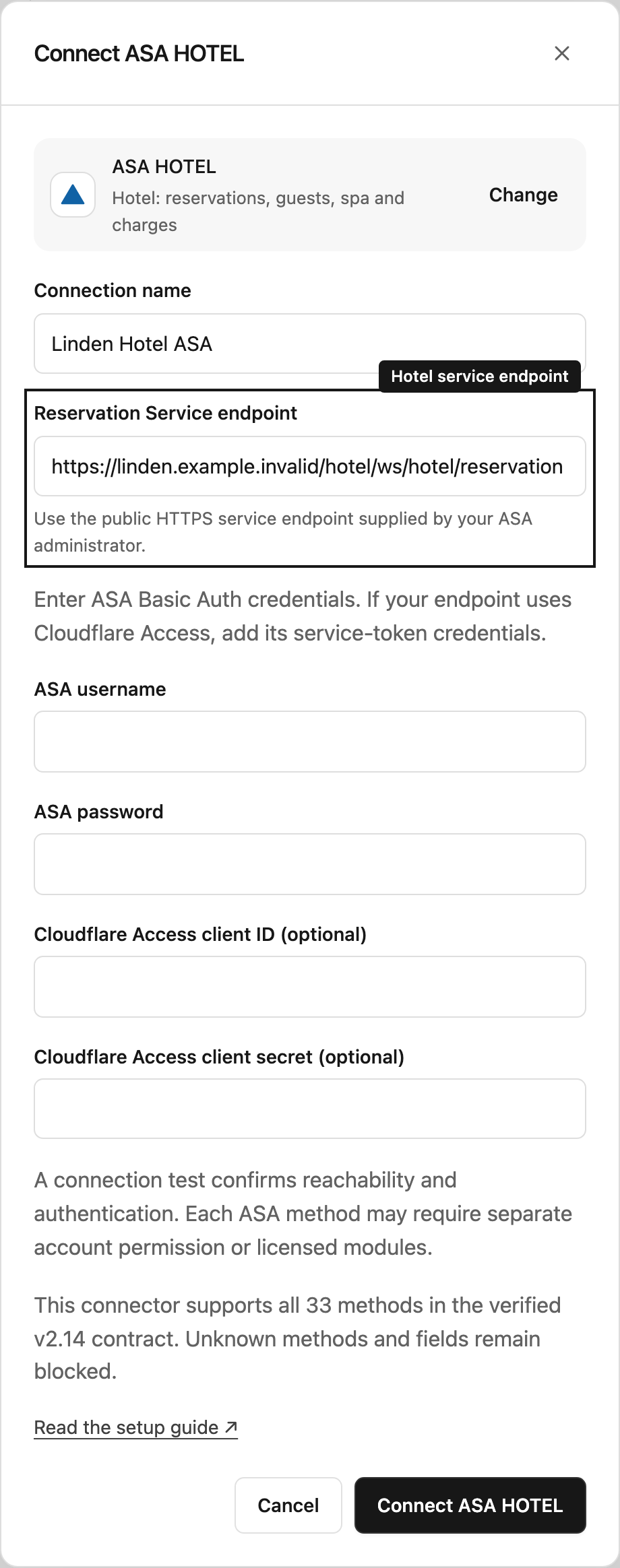
Obtain the service details
Ask your hotel’s ASA administrator or the ASA interface team for:
- The public HTTPS Reservation Service endpoint, ending in
/ws/hotel/reservation. - An ASA username and password, with the intended method permissions.
- The hotel’s enabled interface modules and any Extended Reservation-Service user configuration.
- A Cloudflare Access service-token client ID and secret, if the endpoint uses that access gateway. Some installations authenticate exclusively through this gateway; confirm the arrangement with the administrator.
Use the actual service URL, not a WSDL download URL or an address copied from a development example. Private-network endpoints are unavailable through this connector.
Add and test the connection
- As a workspace owner or administrator, open Settings → Connections → Connect a tool.
- Choose ASA HOTEL.
- Enter a recognizable name and the complete Reservation Service endpoint.
- Enter ASA credentials and, if required, the Cloudflare Access pair.
- Select Connect ASA HOTEL. Select Test on the new connection card.
The test displays the service version and calls getVersion, which is a read despite using SOAP POST. A successful result confirms authentication and reachability; it does not confirm all method permissions. The connector sends a pinned API version automatically.
This connector supports all 33 methods in the verified v2.14 Reservation Service contract and sends requests using that version. Unknown methods and fields remain blocked. Your ASA account still needs permission for each method and any required licensed module.
The service may report a newer version, such as 3.14. Steward still sends its supported 2.14 version on requests. With Configure access, use ASA permissions → Check vendor contract to check for vendor changes; this queues them for review and does not add support automatically. If this check cannot download a readable contract, ask the ASA administrator for the current vendor bundle.
Enable it for your team
Enable the connection for a project, then invite colleagues to that project with the appropriate project role. They can use the configured connection without a separate connection grant.
Start in Read only mode with a reception briefing. Use Ask for approval when preparing operational updates. Financial and consequential changes require approval by default even in Auto mode.
Update credentials
Select the pencil button at the top right of the connection card. Leave fields blank to retain their saved values; enter only values you want to replace. If you change the endpoint, enter the complete credentials again: saved credentials are never sent to a new endpoint. Credential or endpoint changes clear observed ASA access and invalidate pending ASA proposals. Prepare fresh proposals after changing the connection.
For a method denial, ask the administrator to enable the named method and applicable modules. A successful connection test clears cached denials but does not grant those permissions.