Connect Shopify
Connect your Shopify store with a customer-owned app, detect its access, and enable it for your team.
Before you start
You need workspace owner or administrator access in Steward and permission to create and install apps in Shopify. Use a customer-owned app in the Shopify Dev Dashboard. The app and store must belong to the same Shopify organization for Client ID and secret authentication.
Have the store’s canonical address ready, such as your-store.myshopify.com. A custom storefront domain does not identify the Admin API destination.
Create and install the Shopify app
See Prepare your Shopify app for the real dashboard controls.
- Open the Shopify Dev Dashboard, select the organization that owns the store, and open Apps.
- Select Create app and choose the dashboard option. Give the app a recognizable name, such as “Steward connection”.
- Configure its API access scopes for the tasks you want Steward to perform. Start with the access you need. Use the task-to-scope table.
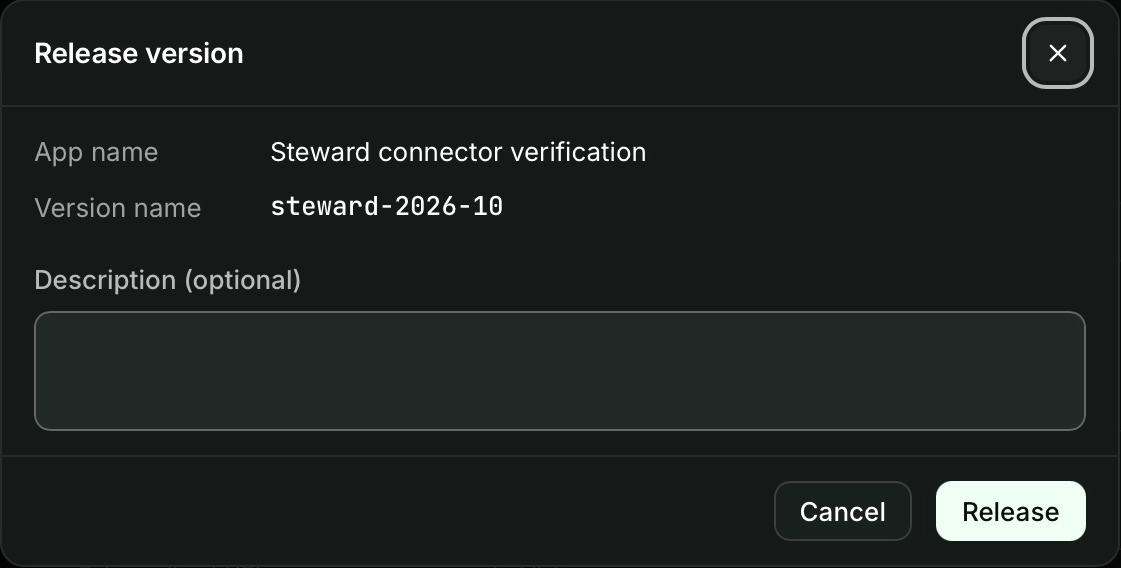
- Select Create app, review the Release version confirmation, and select Release. For an existing app, save and release the changed version. Changes to scopes must be released before they can be granted.
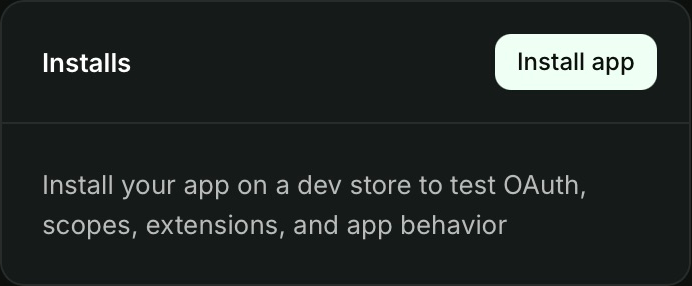
- Open Install app, choose the intended store, and confirm the access in Shopify. Scope changes can require updating the installation.
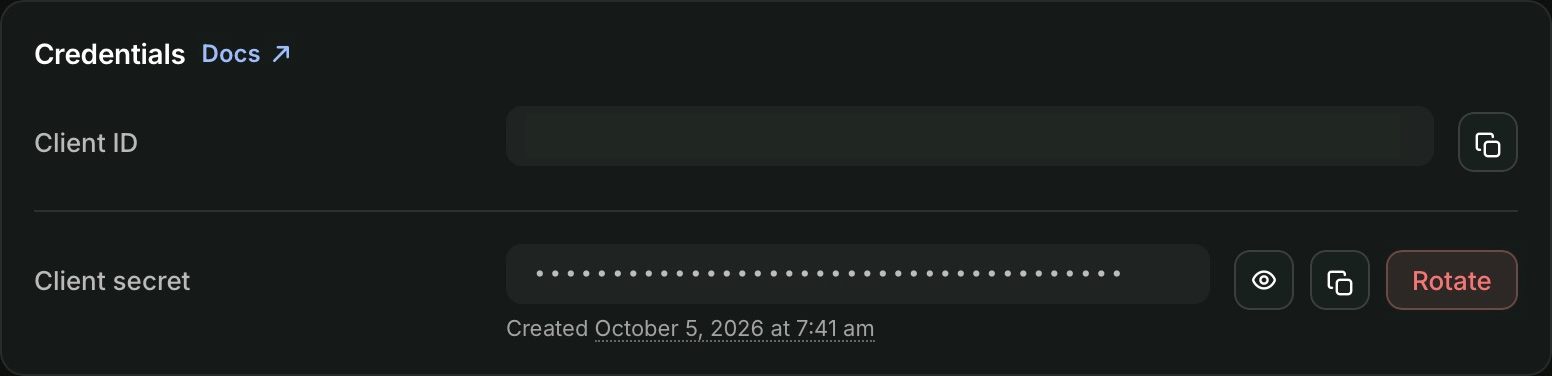
- Open App settings → Credentials and find Client ID and Client secret. They also appear on the app’s Overview. Keep these credentials private. Enter them directly in the protected connection fields in Steward.
See Shopify’s client credentials requirements if Shopify reports shop_not_permitted.
Connect and test in Steward
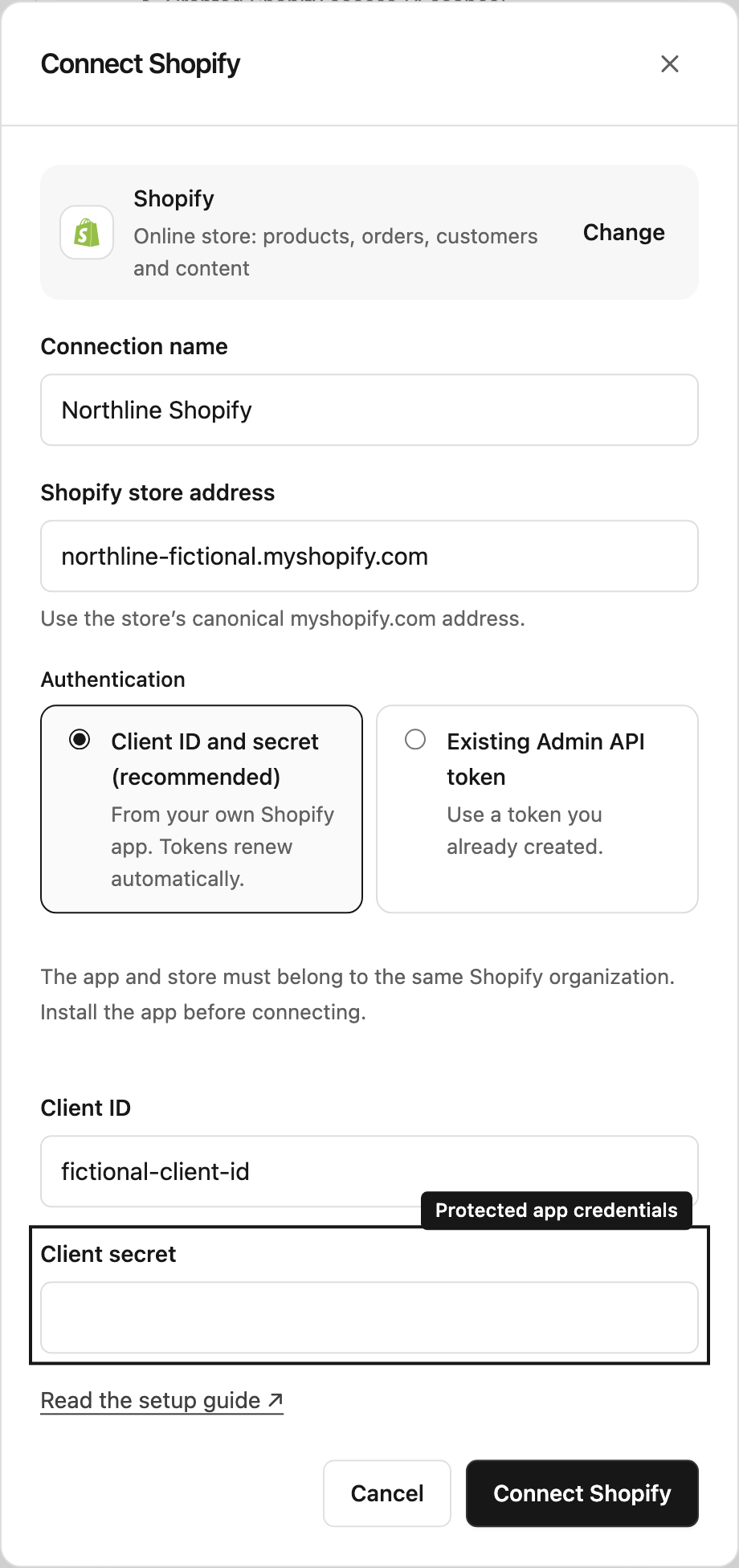
- Open Settings → Connections → Connect a tool.
- Choose Shopify.
- Enter a recognizable Connection name and the Shopify store address.
- Keep Client ID and secret (recommended) selected. Enter the Client ID and Client secret from the installed app.
- Select Connect Shopify. Steward checks the store identity and installed app scopes. It stores credentials privately and renews access tokens automatically.
- On the connection card, select Test when you want to check access again. Expand Granted Shopify access to see detected scopes.
If you already have a suitable Admin API token for this store, choose Existing Admin API token instead. Tokens in this mode are replaced manually when necessary. Saved credentials are never displayed back to you.
Enable project and team access
Enable the connection for a project, then invite colleagues to that project with the appropriate project role. They can use the configured connection without a separate connection grant.
The chat mode controls execution, while your project role controls what you can do. Read only prevents business-tool changes. Ask for approval requires a Manager’s decision. Automatic permits supported changes for Contributors and Managers unless an approval rule requires review. Choosing a mode never changes project access.
Change credentials or scopes
Someone with Configure access can select the pencil button at the top right of the connection card. Leave credential fields blank to keep saved credentials, or enter a complete replacement. Save and test again.
To add Shopify access, configure and release the app’s scopes in Shopify, update its installation, then select Test in Steward. See access and limitations and connection troubleshooting.