When a connection is unavailable
Work through the most common reasons Steward cannot use a business tool.
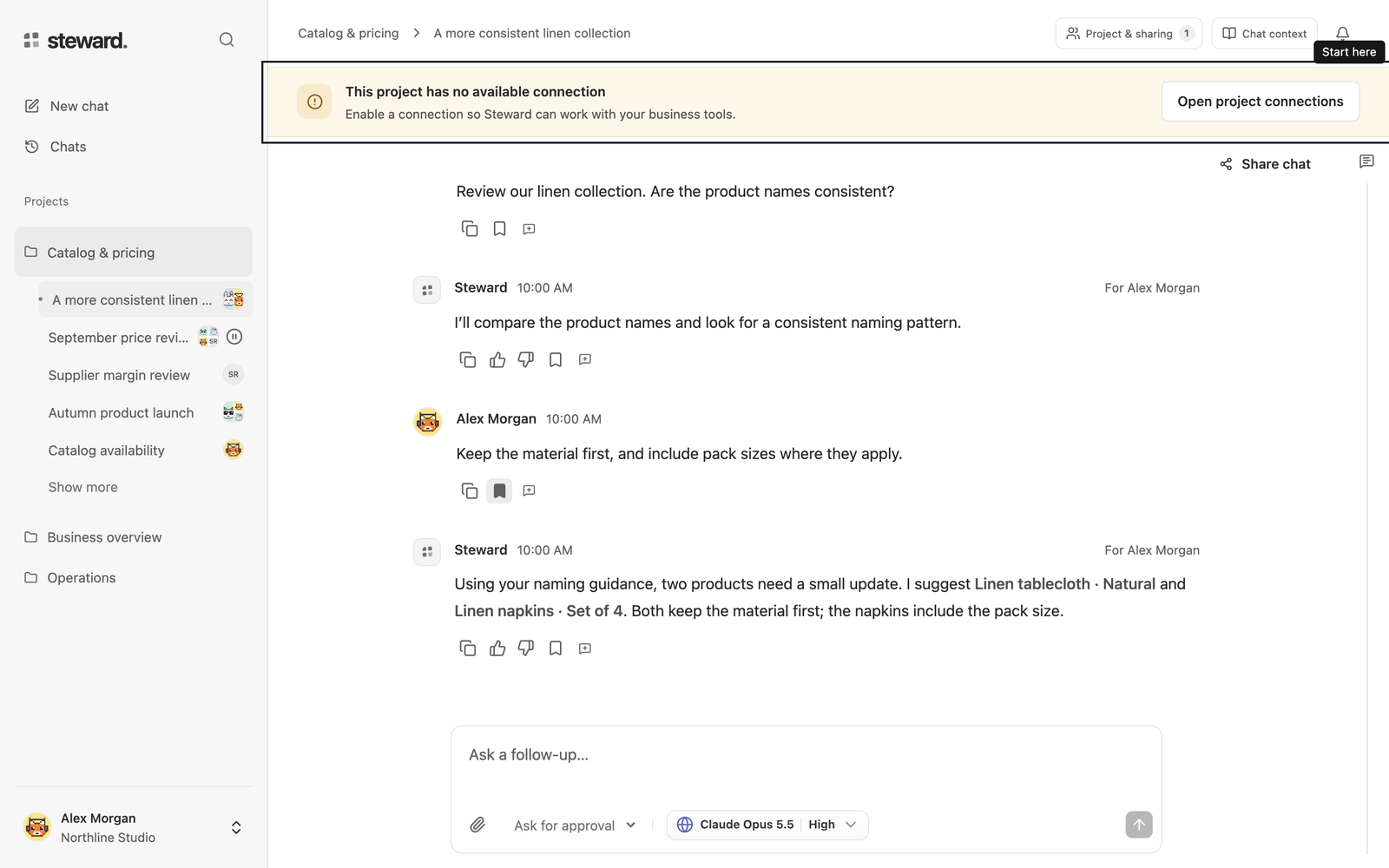
Start with the project notice
If a chat says This project has no available connection, select Open project connections. The notice means Steward cannot currently use a readable connection for you in this project.
Check these three things in order: the tool is connected to the workspace, it is enabled for the project, and you have permission to use it.
Check the workspace connection
Open Settings → Connections. If the connection is missing, ask an administrator whether it has been created and whether you have access to it.
Someone with Configure access can select Test. If the test fails, check the company address and ask your administrator whether the token has expired, been replaced, or lost access in weclapp. Update it with Configure, save, and test again.
Check the project selection
Open Project actions → Configure → Connections. A manager must select the intended connection and save. Adding a tool to workspace settings alone does not enable it for a project.
If you belong to several workspaces, check the workspace name at the bottom of the sidebar. Connections belong to a particular workspace.
Check your permissions
Project members use the connections enabled for their project without a separate connection grant. Viewers follow results and download shared files. Contributors ask questions and prepare changes. Managers also approve changes. Chat modes, connection approval rules and the business tool’s own access limits still apply.
Connection access controls project setup: Use in projects lets a project manager add the connection to a project. Configure maintains credentials and approval rules; Grant manages this setup access. Workspace owners and administrators have all three. Joining a project does not let a member add its connections to other projects or manage credentials.
If a connection is enabled, check the person’s project role and team membership. A Contributor can use it in chat; a Manager can also approve changes. To stop project use, remove project access or disable the connection for that project. Removing Use in projects only prevents adding it to further projects.
If the chat loses contact
A connection to your business tool and your browser’s connection to Steward are different things. If the browser is offline, reconnect and allow the chat to catch up. Server-side work may still be running.
Read any error shown before retrying a business change. If an execution result says its outcome is unknown, check the affected records with the person responsible before asking for the same change again.
If Steward reports that its execution environment could not start a script or register the project’s connections, contact the Steward administrator with the chat and error message. Your business-tool connection may still pass Test. This error alone does not mean its credentials need replacing. Steward can sometimes complete a simple read directly; an interrupted business change needs its recorded results checked before another attempt.
ASA authentication and method failures
Verify the public HTTPS Reservation Service endpoint and saved Basic Auth or Cloudflare Access credentials. Test calls only getVersion; success does not mean every ASA method is permitted. Open ASA permissions to see the method and vendor modules involved. Ask the administrator to grant the specific method or enable an explicitly missing module. Cached denials expire after five minutes.
A contract-support error means the request uses a method or field outside the supported v2.14 contract. Use a documented method and its request example; a permission change cannot add contract support. For a room-occupant change, retrieve fresh identities and prepare a new proposal. For an uncertain charge, booking or document, check ASA before another attempt. See ASA method access and hotel workflows.
Shopify restriction messages
- Missing Shopify scopes: a person with Configure access should update and release the app’s scopes in Shopify, update its installation, then select Test in Steward. The message identifies required scopes when known.
- Invalid credentials: check the installed app, store address and selected authentication method. Replace an existing token manually if it is no longer valid.
- shop_not_permitted: Client ID/secret authentication requires the app and store to belong to the same Shopify organization.
- Protected data restricted: check the app’s protected-data approval in the Dev Dashboard.
- Plan restricted: check whether the store’s plan and enabled features support the requested task.
- Blocked mapping or validation: review the operation and inputs. A stronger Shopify scope cannot override a blocked Steward operation.
Ordinary users should ask someone with Configure access to fix the connection. Configure access does not grant permission to approve business changes. See Shopify access and limitations.
