Read answers, charts, and downloads
Explore the result, inspect the underlying data, and take useful files with you.
Start with the answer
Steward can respond with text, tables, charts, and downloadable files. Read the explanation alongside any numbers so you understand the period, filters, and assumptions used.
If something is unclear, ask a follow-up in the same chat: “Does that include cancelled orders?” or “Break the total down by customer.”
Inspect a table or chart
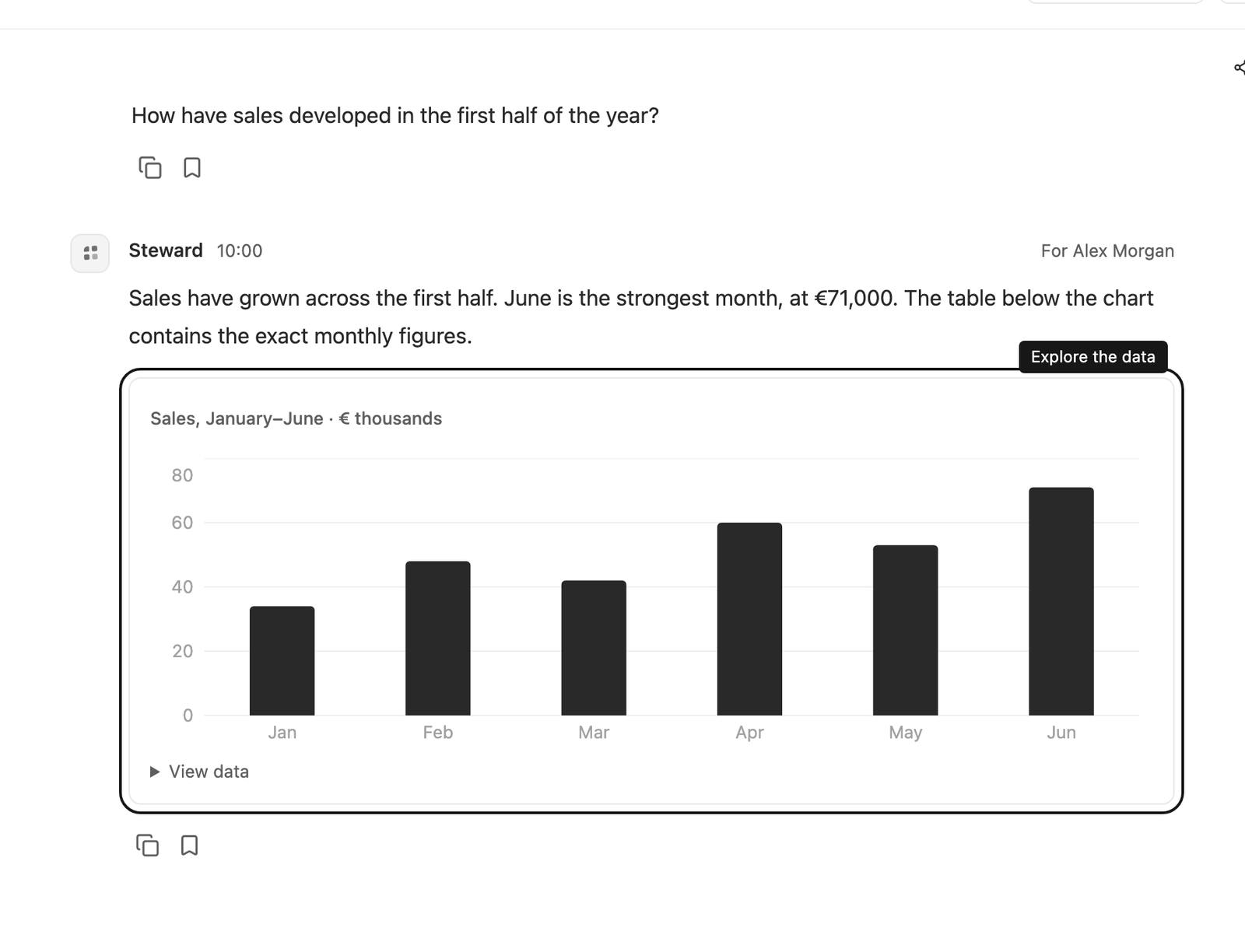
Tables let you compare individual rows. Wider tables scroll horizontally on smaller screens. Charts can show trends or proportions. Use View data beneath a chart to inspect the values behind it.
Hover over a chart for additional values where available. The underlying table is also useful when you need precise figures or when a visual is difficult to interpret.
Keep or copy an answer
Select the copy action below a message to copy its text. Select the bookmark action when the answer should stay in the chat’s context in full.
A bookmark is particularly useful for agreed definitions, recurring procedures, and decisions that should remain available after the conversation is summarized.
Long conversations can be summarized automatically while Steward continues with your selected model. Original messages and full bookmarks remain available. Generated files and confirmed connection changes keep their own records. If a run stops, inspect those results before asking Steward to repeat a change.
Download a file
Generated files appear as named cards in the answer. Select the card to download the file. Access is checked when downloading, so a removed file or a change in permissions can make an earlier link unavailable.
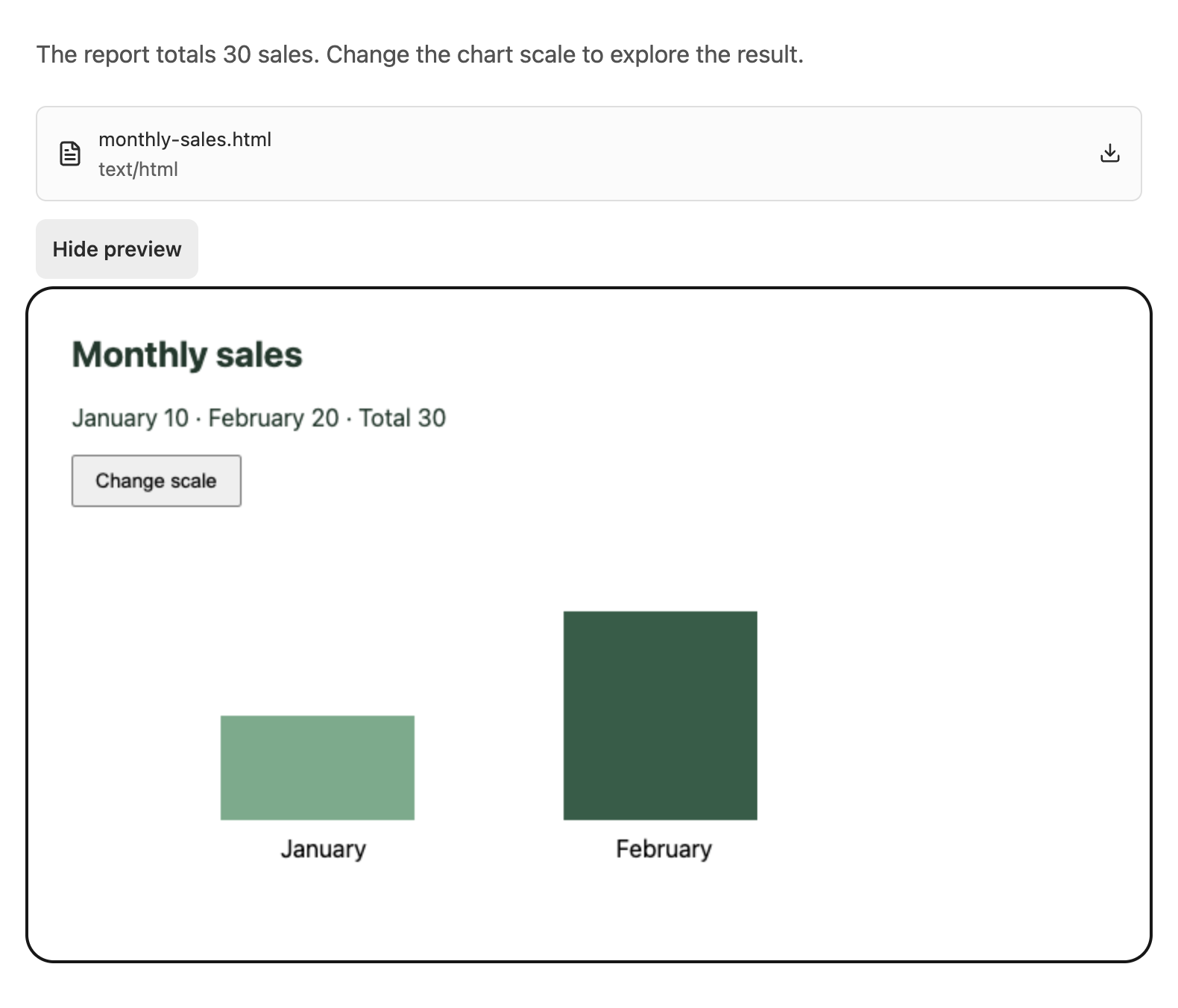
Steward can generate Excel spreadsheets, PDF reports, images and interactive HTML charts. Spreadsheet downloads use Excel format by default; CSV is provided only when you explicitly ask for CSV. Image and HTML cards include Preview; select it to open the result within the chat, and Hide preview to close it. HTML charts include their data and chart code in the file. External assets and connections, forms, popups and application actions are disabled in their isolated preview. PDFs remain downloadable.
You can ask Steward to use Python for calculations, transformations, charts and exports. Requests from Python use the same connection permissions as ordinary agent tools. The script can await a decision for up to 30 minutes cumulatively; proposals remain available after that wait. If the script is interrupted or its container is lost, it is not automatically replayed. Review confirmed results before asking for another change.
Create or share an image
Ask Steward to create or edit an image in your message, using shared company style and product references. Generated images open inline.
The chat or image owner, and workspace owners or administrators with contributor access, can share selected messages or an output image using a public snapshot link. Review the selection before activating it.
Distinguish a proposal from a result
An approval card describes intended changes. It is not a confirmation that the changes succeeded. Open its Details and read the execution results after a decision, then review Steward’s continuation.
If you receive an error or an uncertain outcome, check what completed before requesting another change. Ask for a smaller or more specific analysis when an answer does not address the question you meant to ask.