Archive, restore and delete chats
Tidy up your sidebar, find older conversations, and remove chats your team no longer needs.
Find older chats
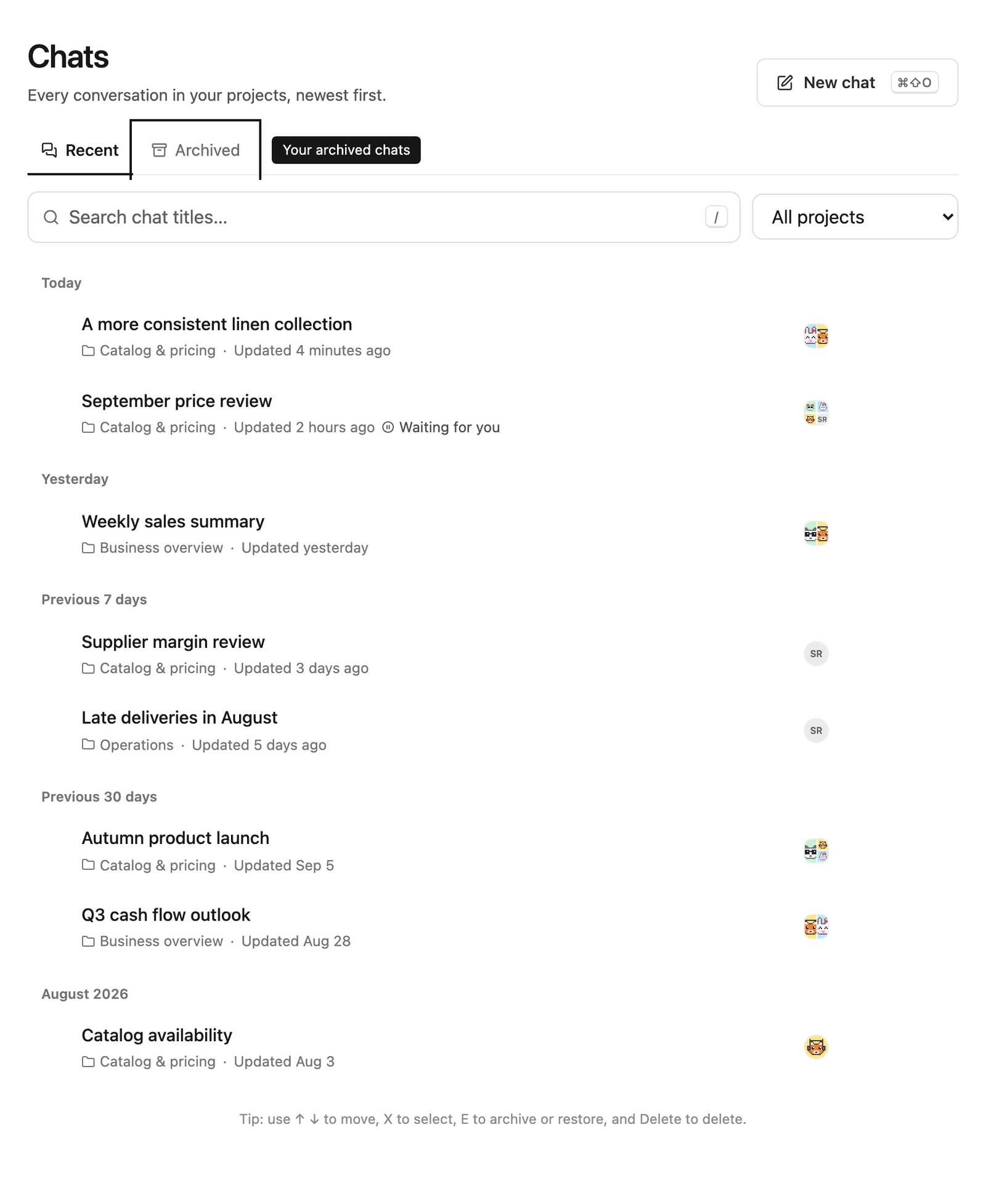
Select Chats in the sidebar to see every conversation in the projects you can access, newest first and grouped by date. Type in the search box to filter by title, or choose a project to see only its chats. To search inside messages and answers, use workspace search.
The sidebar shows each project’s most recent chats. Archived chats are not in the sidebar; find them on the Archived tab of the Chats page.
Archive a chat
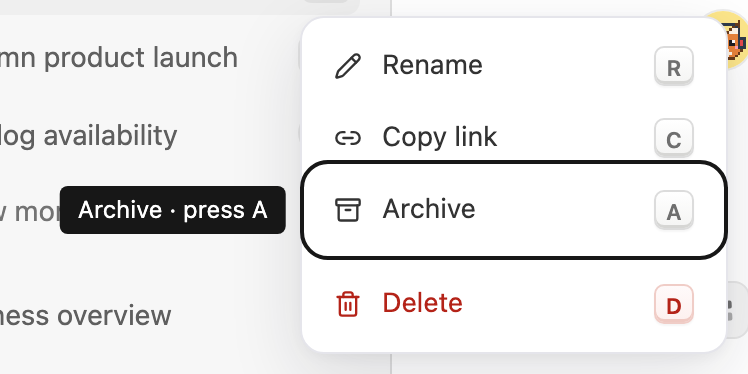
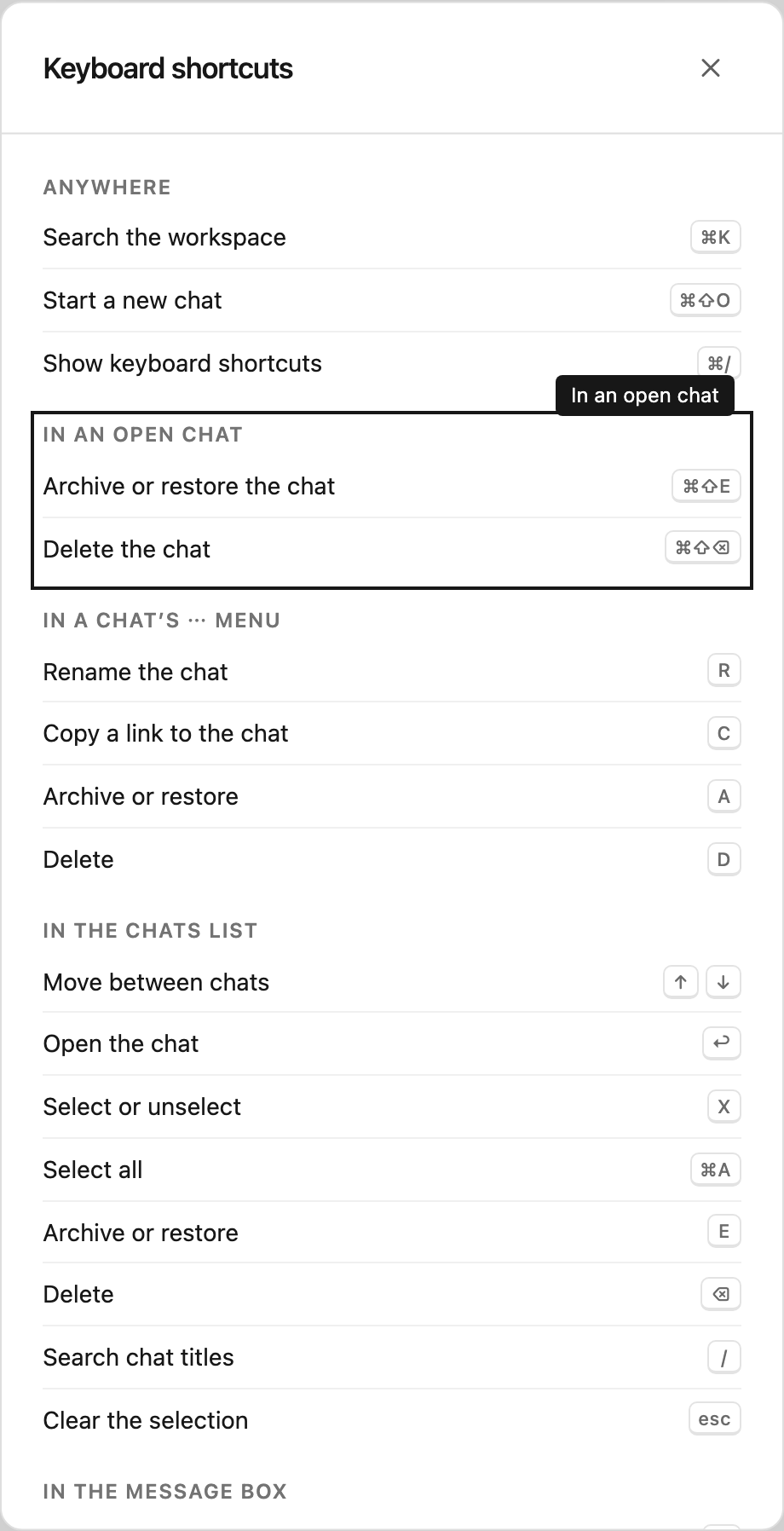
Archive a chat when the work is done but you may need it later. Point at the chat in the sidebar, select ⋯, then select Archive or press A. You can also right-click the chat, or press ⌘⇧E (Ctrl+Shift+E on Windows) while the chat is open.
The chat leaves the sidebar and the Recent list right away, and a notice offers Undo. Archiving applies to everyone in the project, because chats belong to the project. An archived chat stays readable and searchable, and search results mark it Archived. Nobody can send new messages in it until it is restored. A run that was already in progress still finishes.

Restore an archived chat
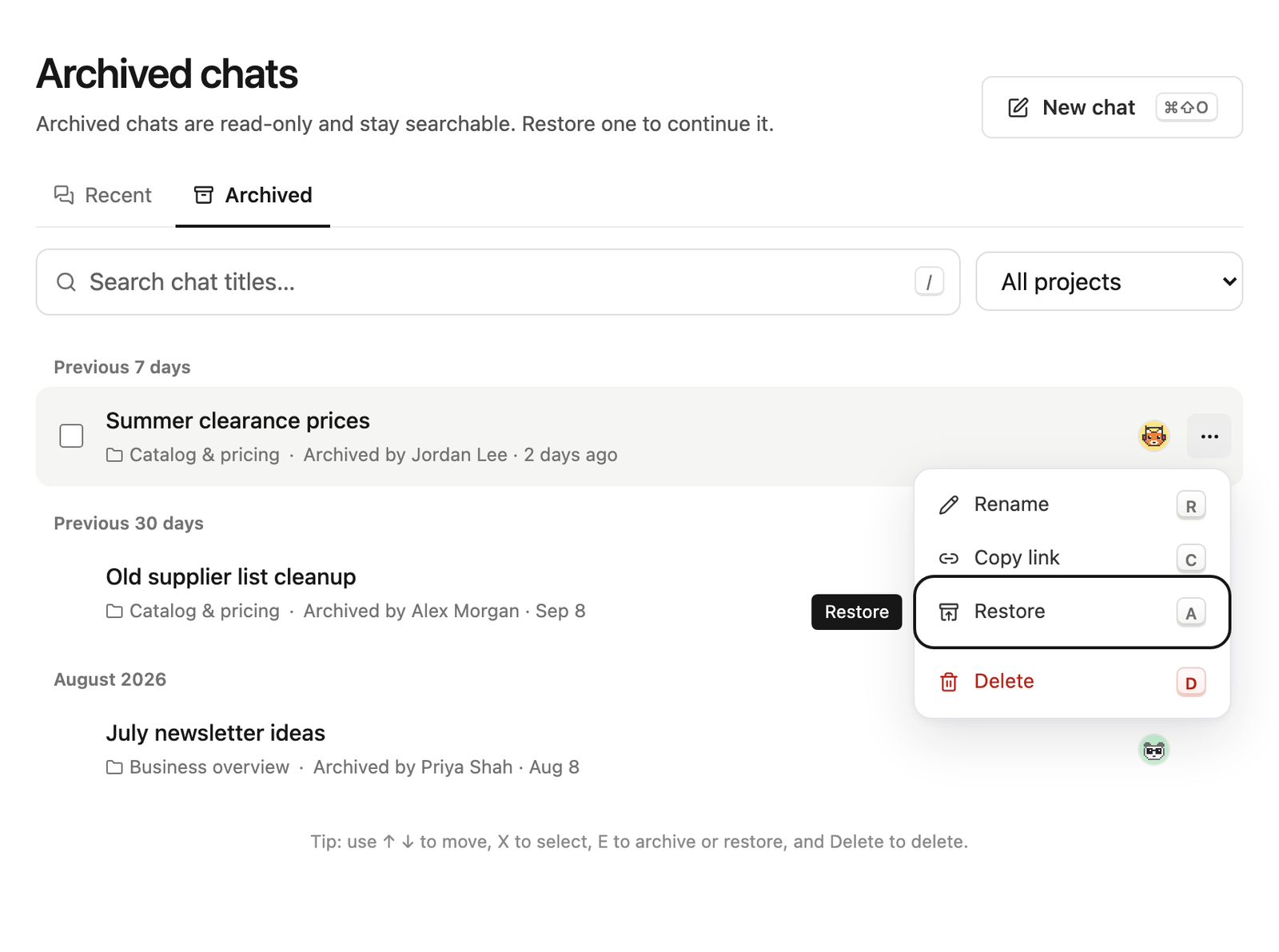
Open Chats, select the Archived tab, select ⋯ on the chat, then select Restore or press A. Or open the chat and select Restore chat below the conversation. Restoring puts the chat back in its place in the sidebar, and everyone can continue the conversation. Chats from a deleted project can’t be restored.
Delete a chat
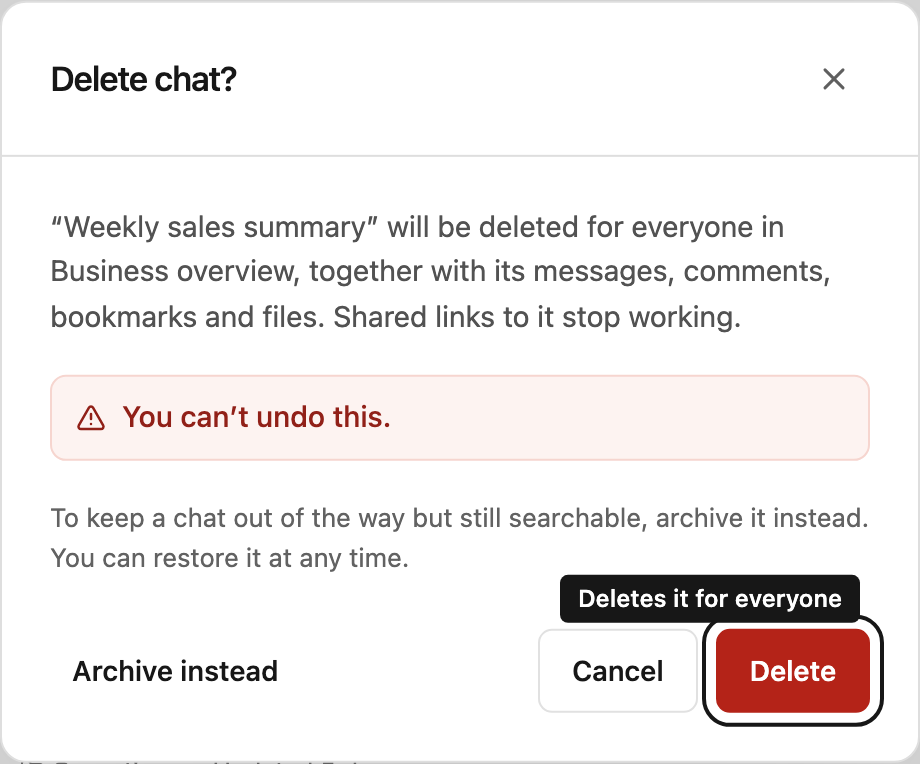
Deleting removes a chat for everyone in the project, together with its messages, comments, bookmarks and files. Shared links to the chat stop working. You can’t undo this. If you only want the chat out of the way, archive it instead.
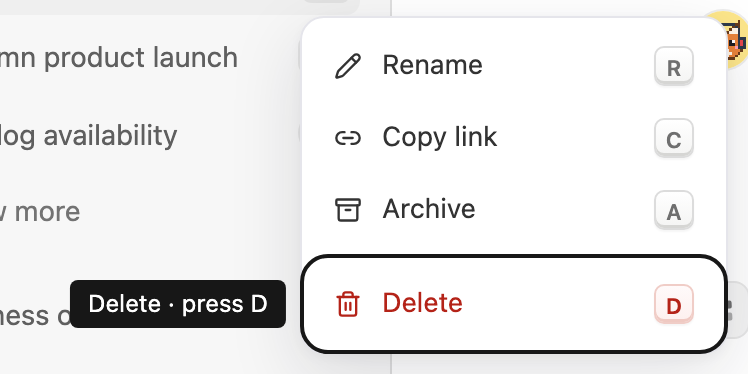
Open the chat’s ⋯ menu and select Delete or press D, or press ⌘⇧⌫ (Ctrl+Shift+Backspace on Windows) in the open chat. Steward always asks you to confirm, and the confirmation also offers Archive instead.
You can’t delete a chat while Steward is working in it or waiting for an approval. Stop the run or decide on the approval first. Usage that the chat already caused stays in your usage reports, and the audit log records who deleted it.
Work with several chats at once
On the Chats page, select the checkboxes next to the chats you want to change, then select Archive, Restore or Delete above the list. Hold Shift while selecting a checkbox to select a range. If you can’t delete some of the selected chats, the confirmation says so and keeps them.
Keyboard shortcuts
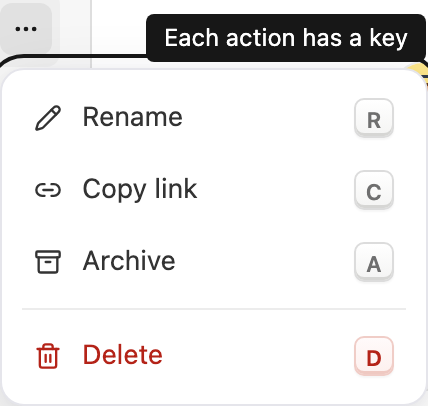
While a chat’s ⋯ menu is open, press R to rename the chat, C to copy its link, A to archive or restore it, and D to delete it. Each menu item shows its key, and the keys are the same in every language.
On the Chats page, use ↑ and ↓ to move between chats, Enter to open one, X to select it, E to archive or restore, and Delete to delete. Press / to search titles and Esc to clear the selection. Anywhere in the workspace, ⌘⇧O (Ctrl+Shift+O on Windows) starts a new chat. To see every shortcut, press ⌘/ (Ctrl+/).
Who can do what
People with Contributor or Manager access to a project can rename, archive and restore its chats. Viewers can read archived chats but can’t change them. A chat can be deleted by the person who started it, as long as they can still write in the project, and by project managers. Workspace owners and administrators count as managers in every project. See roles and access.