Comment on messages and mention teammates
Discuss any question or answer with your team beside the conversation, mention people with @, and follow replies in your notifications.
Comment on a message
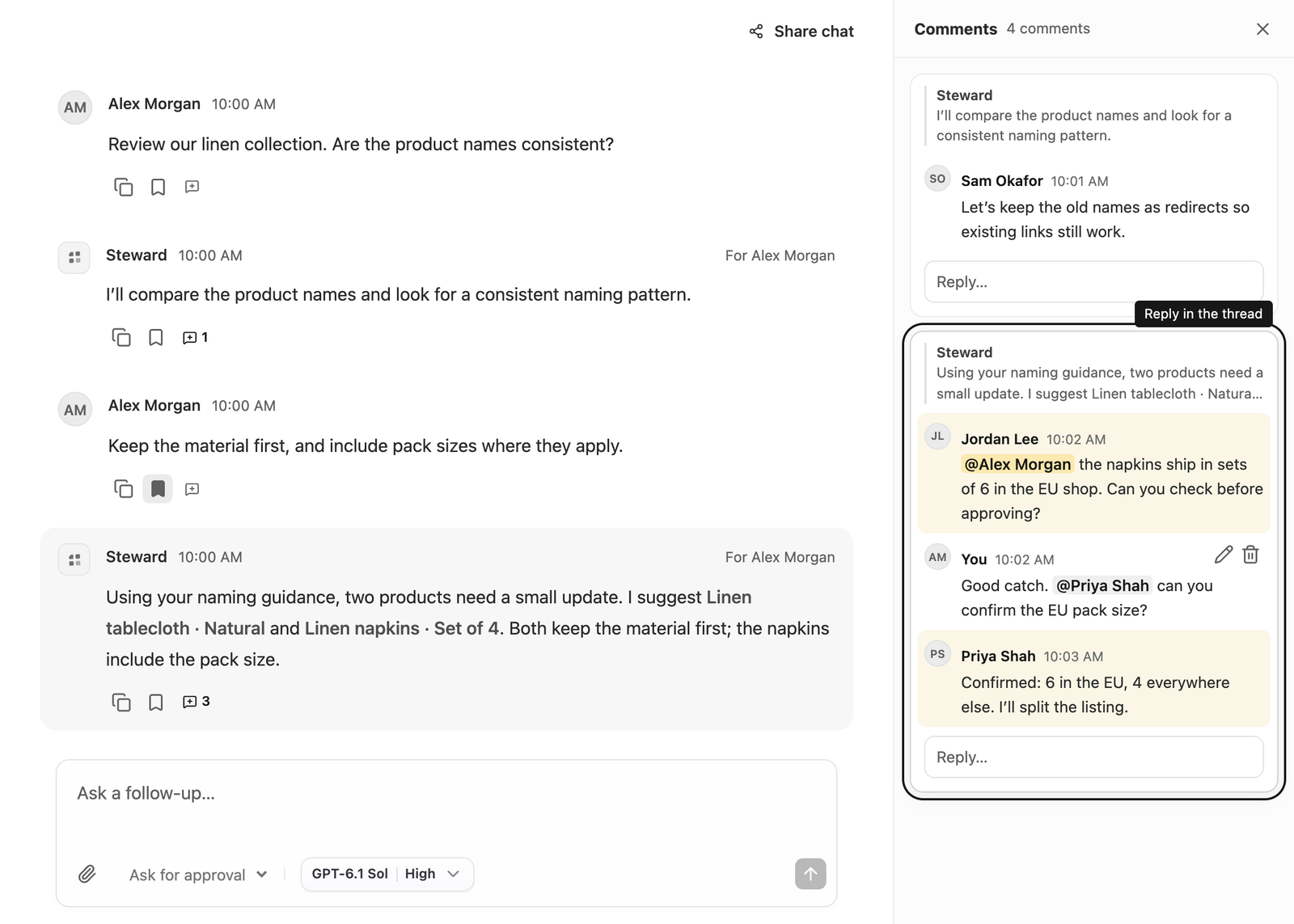
Select the comment icon beneath any message — your own question, a teammate’s, or a Steward answer — to open the Comments panel at that message. Write your comment and press Enter, or select Comment. Use Shift+Enter for a new line.
Comments are a conversation between people. They are not sent to Steward, they do not start a run, and they are not added to the chat’s context or summary. To ask Steward something, use the message box as usual.
Everyone who can open the project can read and write comments, including people with Viewer access. You can edit or delete your own comments. Project managers can delete any comment.
Follow comments in the rail
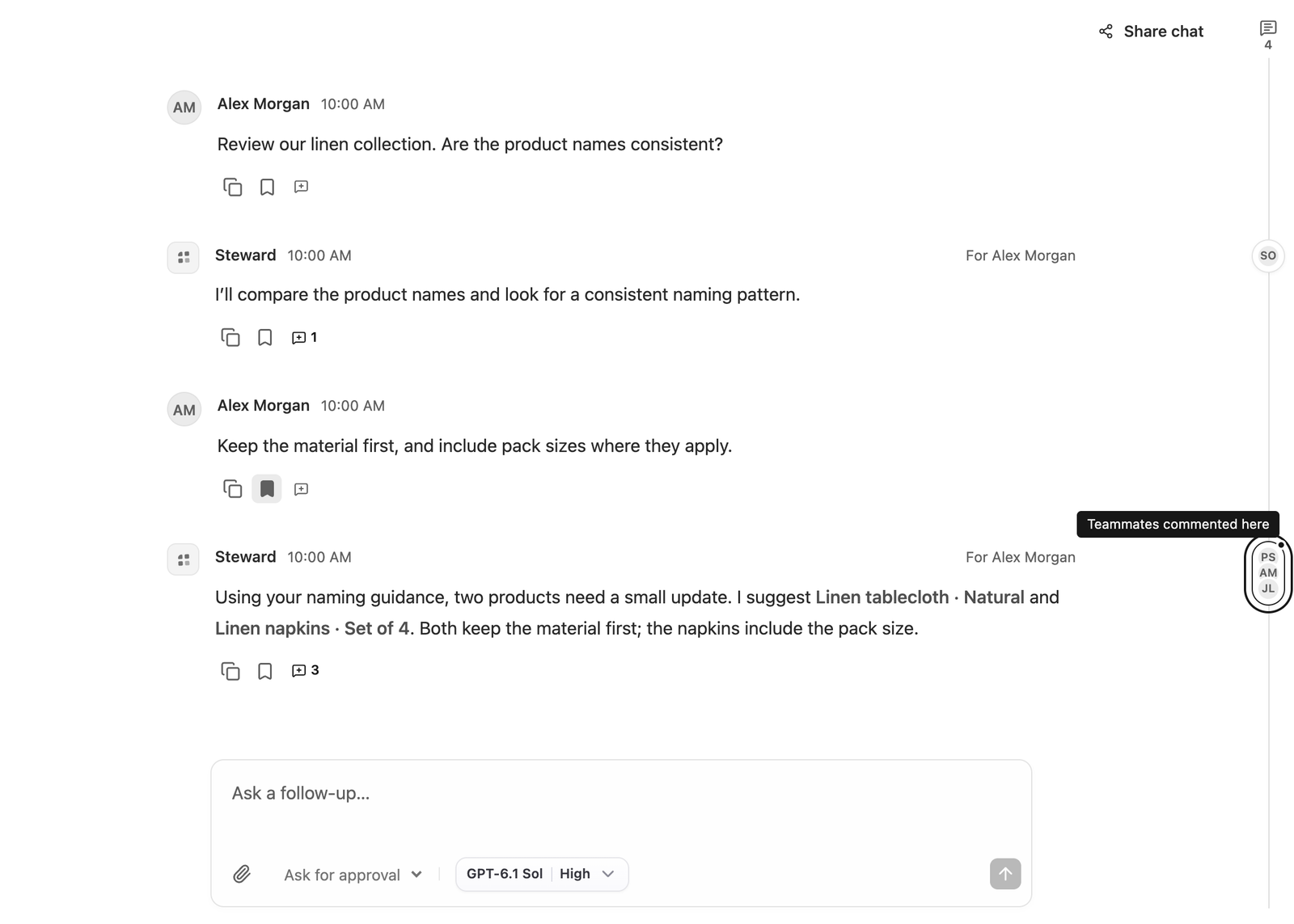
A thin rail runs along the right edge of every conversation. Next to each message with comments it shows the avatars of the people who took part. When a thread is above or below what you can currently see, an arrow and a count appear at the top or bottom of the rail.
Select a marker to open that thread, or select the comment icon at the top of the rail to see every thread in the chat. Select a quoted message in the panel to jump to it in the conversation. Close the panel with Close comments or the Esc key. Steward remembers whether you prefer the panel open.
Mention a teammate
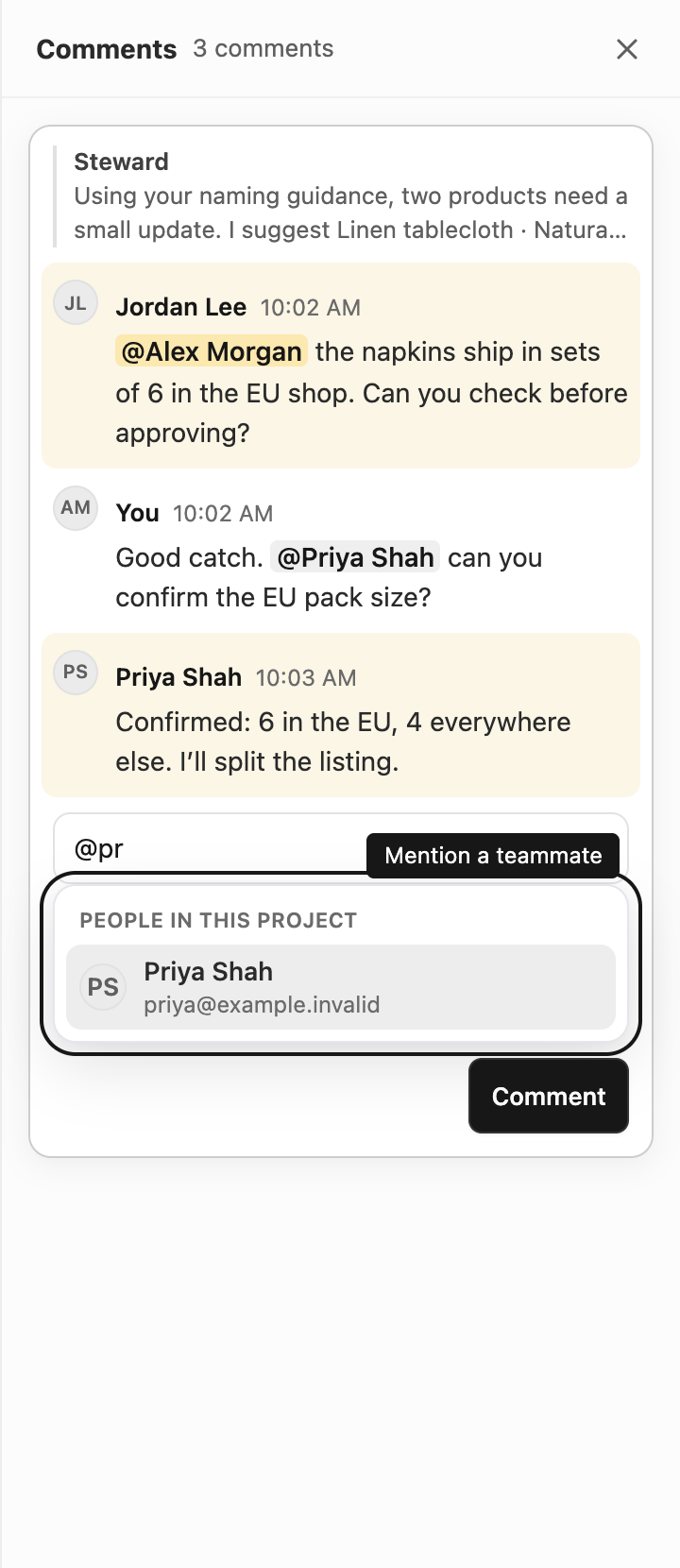
Type @ followed by the start of a name or email address. Choose a person from the list with the mouse, or with the arrow keys and Enter or Tab. The mention appears as a highlighted name, and mentions of you are shown in yellow.
The list only offers people who can open the project. To bring in someone new, first share the project with them in Project actions → Configure. If you edit a comment and add a mention, only the newly mentioned person is notified.
Notifications
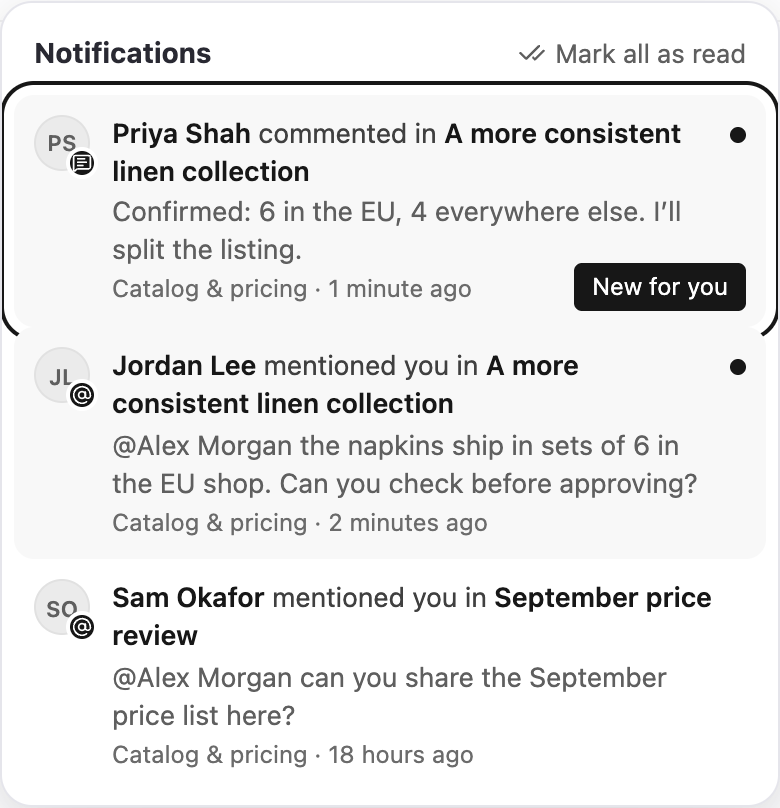
The bell in the top bar shows how many unread notifications you have. You are notified when:
- someone mentions you in a comment, or
- someone comments on a thread you are part of — because you commented there, wrote the message, or asked the question Steward answered.
You are never notified about your own comments, and you get at most one notification per comment. Select a notification to open the conversation at that comment. Opening a chat’s comment panel marks that chat’s notifications as read; Mark all as read clears the rest.
Limitations
- Notifications appear inside Steward only. They are not sent by email.
- Comments are plain text with mentions. Formatting, attachments and reactions are not available.
- If someone loses access to a project, they no longer see its comments or notifications, and new mentions of them are not delivered.
- Deleting a comment removes it for everyone, together with its notifications. Deleted comments cannot be restored.