Guide work while it runs
Add a clarification, answer a question, stop a run, or return to ongoing work without losing the conversation.
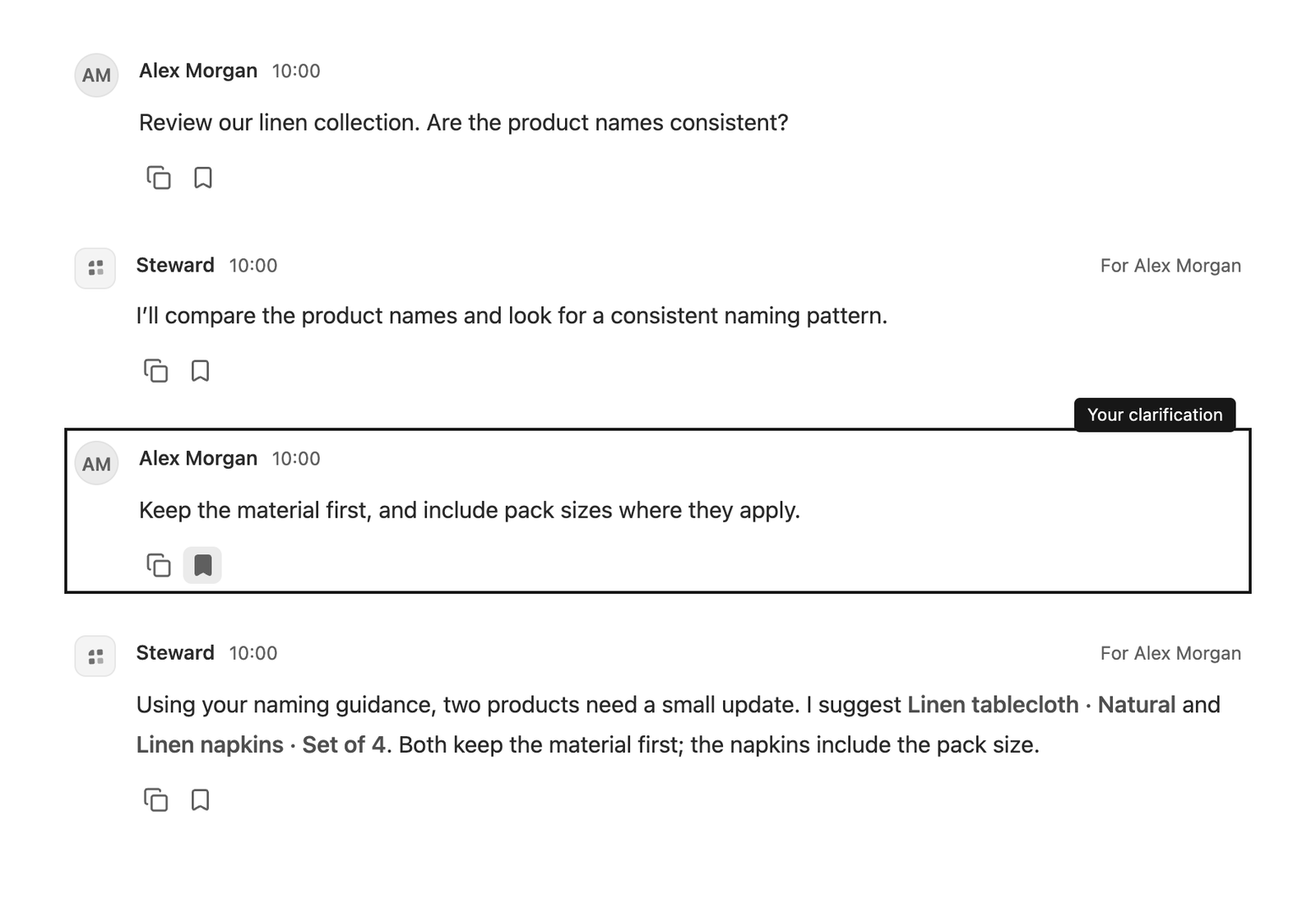
Follow work in the conversation
A run is Steward’s work on one request. Follow its replies, questions, and approval cards in the conversation. While a run is active and the composer is empty, people who can stop it see Stop run in place of the send button. Once you type something you can send, the button turns back into send.
Only one run can be active in a chat at a time. Everyone with project access can follow its progress.
Add a clarification
If you started the active run, type in the composer and send a steering message. For example:
Use net revenue and exclude cancelled orders.
Your message appears in the conversation when sent. Steward takes it into account at its next opportunity to consult your instructions. Output that already appeared remains part of the history; a reply that uses the new guidance follows that guidance.
A clarification may arrive after an action has already happened. Sending guidance does not pause execution or reverse completed changes.
Answer a question or review a proposal
When Steward asks for more information, answer in the same chat. When it requests approval, open the card’s Details and make a decision if you have the appropriate access.
A reply after approval appears after the decision card, keeping the conversation in the order you experienced it.
An approval records your decision first; it does not mean the change has already happened. Steward then resumes the same request and reports the result. Wait for that result before treating the proposed change as completed.
Work with a colleague’s run
Only the person who started the run can steer it. If a colleague is working, wait for that run to finish before sending your own request. Project managers can also stop it.
Stop a run
Select Stop run (the dark square button where send usually is) to end the active run. If you have already started typing, clear the composer to show it. You can stop a run if you started it, or if you are a project manager, workspace owner or workspace administrator. Scheduled task runs count as started by the person they run as.
While Steward finishes stopping, the button shows Stopping… and the composer shows “Steward is stopping…”. Everyone in the chat sees this, including when a project manager stops someone else’s run. You can keep writing, but sending waits until the run has stopped. When it ends, the reply shows “Stopped after” with the elapsed time.
A queued run or a run waiting for an answer or approval stops immediately. A running run usually stops within a few seconds. Output that already appeared stays in the conversation.
Stopping does not undo anything. A change that was already being sent to a connected system can still complete, so check the system before asking again.
Stopping a run that is waiting for approval neither approves nor rejects the proposal. The stopped run never carries it out. Ask Steward in a new message if you still want the change.
If stopping fails, an error appears above the composer; select Try again.
Return later
You can leave the chat or close your tab while work continues on the server. Return to the same project and chat to catch up. If the browser loses contact, reconnect and allow it to load the latest state.
An approval wait is part of the same request. After a long pause, Steward restores saved working files when needed. If it cannot restore them safely, it stops and reports the problem. Continue in the same chat with the existing proposal or confirmed record ID; do not ask it to create the same record again.
When the chat’s files are damaged
Rarely, the working files Steward saved for a chat are damaged and cannot be restored. Steward then stops and says that trying again won’t help. If you can contribute to the project, select Clear files and continue above the composer, then send your message again.
The conversation and its answers stay. Steward starts without files created or attached in earlier runs, so attach anything it still needs. Changes already made in connected systems are not affected. Viewers see the message without the button; ask someone who can contribute to clear the files.