Choose a model and thinking level
Select the assistant that fits the request and the amount of analysis it should use.
Choose before sending
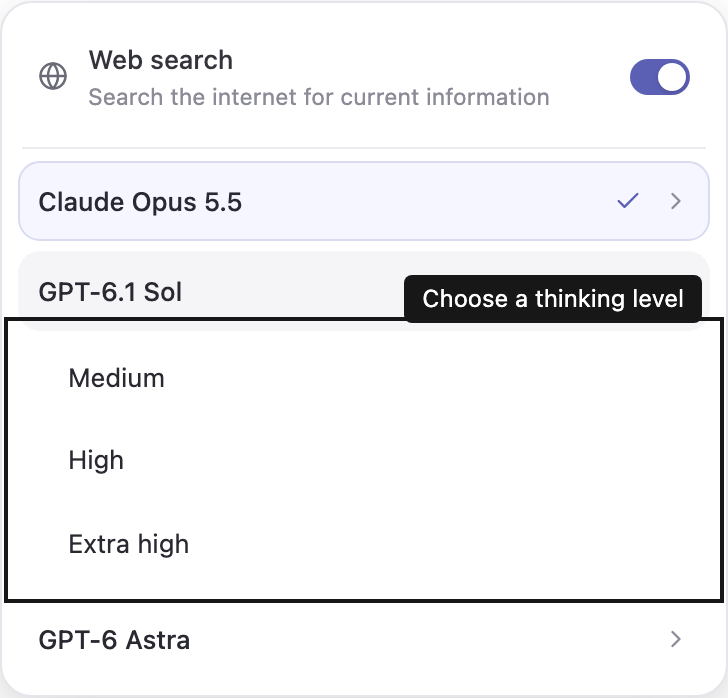
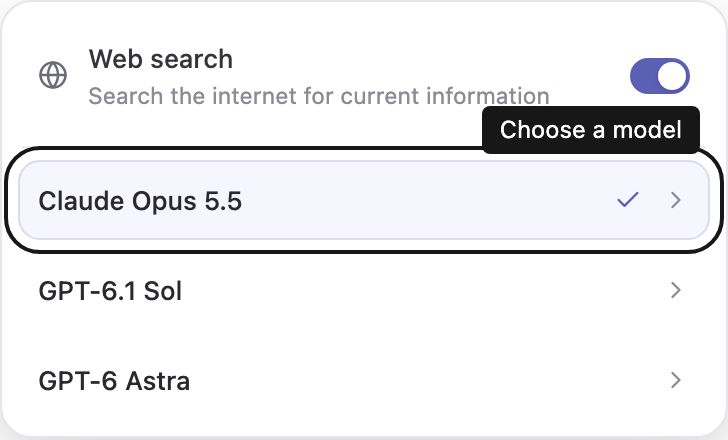
In the message composer, select Model and thinking level. The current model is highlighted. Select a model row or its chevron to reveal Medium, High, and Extra high. Select a level to apply both choices and close the picker. The compact control shows your model and level. Contributor or Manager access is required to send a request with these settings.
The available choices are Claude Opus 5.5 from Anthropic, GPT-6.1 Sol and GPT-6 Astra. Claude Opus 5.5 is the default and is well suited to long, multi-step work such as reviewing many records or preparing a large batch of changes. If your Business Steward deployment has no Anthropic access, Claude Opus 5.5 is hidden and GPT-6.1 Sol is the default. GPT-6 Luna is no longer offered; older chats that used it continue with the default model. All models use the same tools, permission mode and approval rules. Workspace owners can review model usage under usage and updates.
Claude Opus 5.5 always thinks before answering; the thinking level controls how much. In rare cases Anthropic’s safety checks decline a request. Steward then lets Anthropic retry it on a recommended fallback model; if that is not possible, the run stops with a message that the model declined. Rephrase the request or choose another model.
Every model offers the same three thinking levels. High is the default. Older chats using the previous Sol model continue with GPT-6.1 Sol; retired thinking levels become High for the next request. More analysis can take longer and use more tokens. See thinking summaries for what appears while Steward works.
These choices apply to the next run. A run already in progress keeps its model and thinking level, including when you send a steering message. The app saves the choices with an existing chat so your next request starts with them. Expanding a model or closing the picker without choosing a level leaves your selection unchanged.
The Web search switch at the top of the same menu controls whether Steward can look up current public information for this chat. It is on by default. See search the web.
Keep access decisions separate
The Permission mode beside the model control determines what business-tool actions are allowed and when approval is needed. Changing the model or thinking level does not grant access or change approval requirements. See permission modes.