Rate Steward’s answers
Give an answer a thumbs up or thumbs down, say what went wrong, and learn who can see your rating.
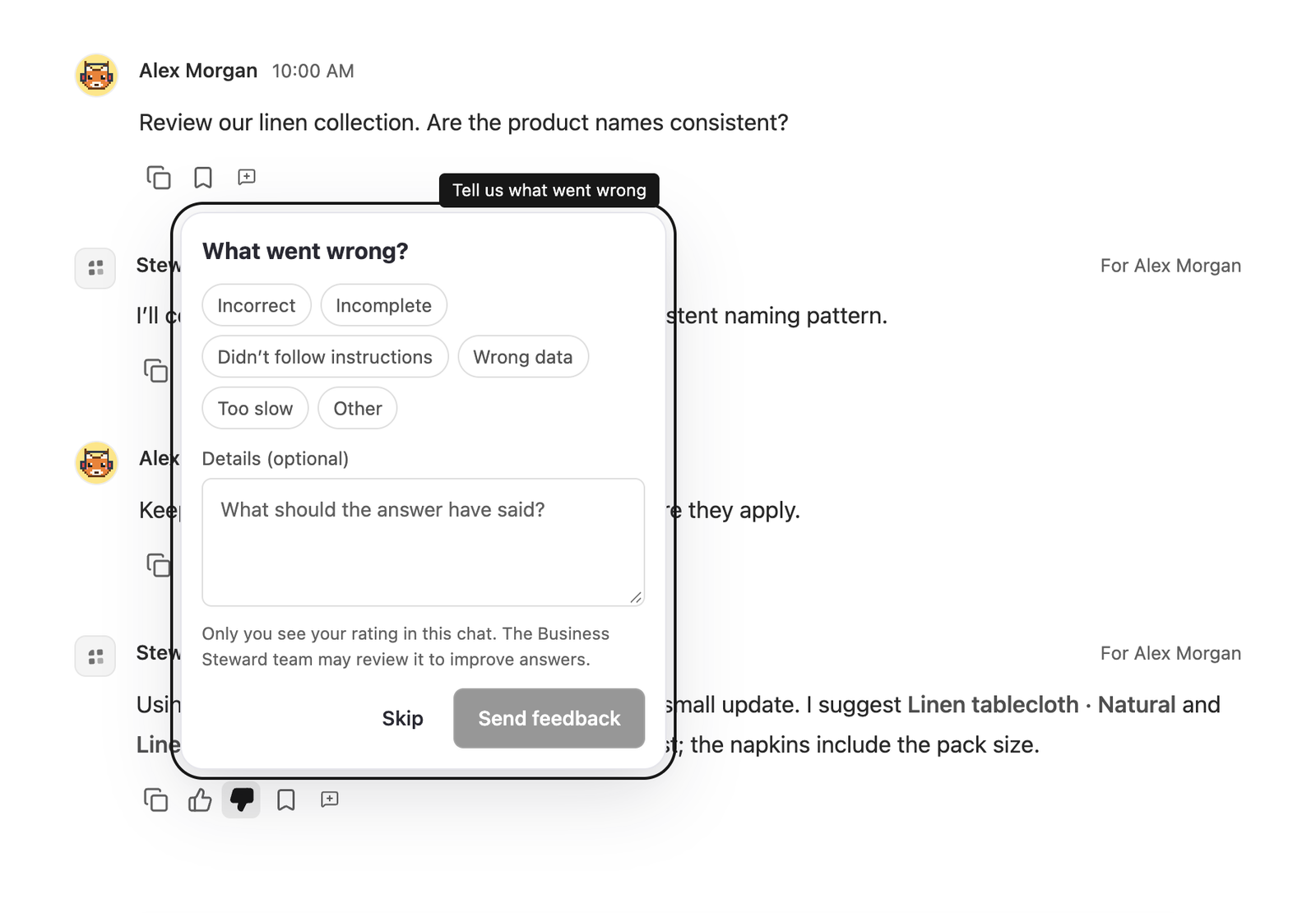
Rate an answer
Beneath every finished Steward answer, next to the copy action, you’ll find a thumbs up (Good answer) and a thumbs down (Bad answer). Select one to rate the answer. The selected thumb is filled in so you can see your rating at a glance.
Anyone who can open the project can rate answers, including people with Viewer access. Rating doesn’t send anything to Steward in the conversation, doesn’t start a run, and doesn’t change the answer.
Say what went wrong
A thumbs down is saved immediately. A small panel then opens and asks What went wrong? You can:
- choose a reason: Incorrect, Incomplete, Didn’t follow instructions, Wrong data, Too slow or Other;
- add details in Details (optional), up to 2,000 characters — for example, what the answer should have said.
Select Send feedback to save them, or Skip to keep just the thumbs down. Concrete details help most: name the figure, record or instruction that was wrong.
To correct the answer itself, ask a follow-up in the same chat. Feedback is not read by Steward during the conversation.
Change or remove your rating
Select the other thumb to change your rating. Select the filled-in thumb again to remove it. Changing to a thumbs up removes any reason and details you gave with the thumbs down.
If your rating can’t be saved — for example, because you’re offline — it reverts and Rating not saved appears beside the thumbs. Try again once you’re back online.
Who sees your rating
- In the chat, only you see your own rating. Teammates, including workspace owners and administrators, don’t see whether or how you rated an answer.
- The Business Steward team can review ratings, reasons and details together with the rated conversation, your name, and the model and thinking effort used for the answer. We use this to find and fix weak answers and improve quality.
Don’t put passwords or other secrets in the details box.
Limitations
- Only Steward’s answers can be rated, not messages written by people.
- An answer can be rated once it has finished. While Steward is still working, the thumbs are hidden.
- Each person has one rating per answer.
- There is no workspace summary of ratings yet.