Share selected messages or an image
Create a public snapshot of exactly the result you choose, then revoke the link when needed.
Choose what becomes public
Results stay private by default. The chat owner or a workspace owner or administrator can activate public sharing when they have contributor access to the project. For an individual output image, its owner or a workspace owner or administrator can share it with the same project access.
Select Share chat above the conversation. Check the individual messages you want to include; nothing is selected initially. Read their full text and note which selected assistant messages include output images. Edit the Public title and Public description, then select Create public snapshot.
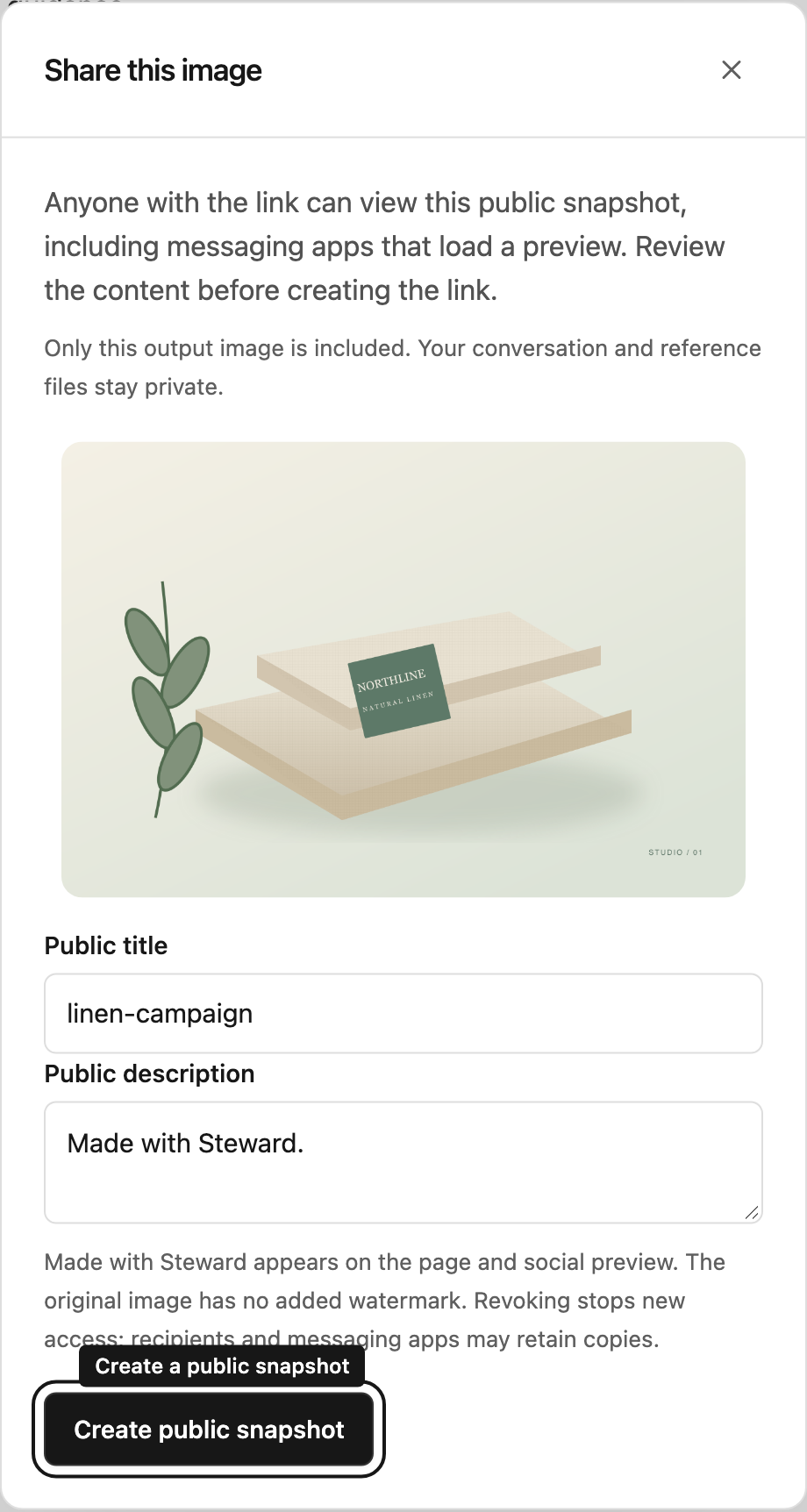
For one image, select Share image beside its file card. Review the image, title and description, then select Create public snapshot. This includes only the selected output image, without its surrounding conversation. Source and reference attachments cannot be shared through this action.
Send the link
Select Copy link or use Share… when your browser offers native sharing. Anyone with the link can open it without signing in. Messaging services may also load the public image and page to show a preview.
The page and social preview include Made with Steward. Downloading or opening the original image keeps its original pixels; Steward adds no watermark to that image.
Understand the snapshot
The link contains the reviewed selection at creation time. Later messages and edits do not change it. Create a new link to share a different result. Reference files, draft attachments, thinking summaries, approvals and tool details are excluded. Private Markdown links and embedded external images are not published.
Review selected text yourself: it may contain business information you do not want to make public. Automatic filtering of common credential formats cannot replace this review. A link supports up to 100 selected messages and eight output images.
Revoke a link
Open Share chat or Share image again. Find the link under Created links and select Revoke. The page stops opening right away; shared images and link previews stop loading within about ten minutes. Existing recipients and messaging apps may retain copies or cached previews, so revocation cannot recall material already received.