Reply faster with suggested replies
Turn on suggested replies, then use the suggested next message under Steward’s latest answer, edit it if you like, and learn how it’s written.
Turn suggested replies on
Suggested replies are off by default. To turn them on, open Settings → Profile and select Show suggested replies. The setting applies only to you, in every workspace you belong to.
Use a suggested reply
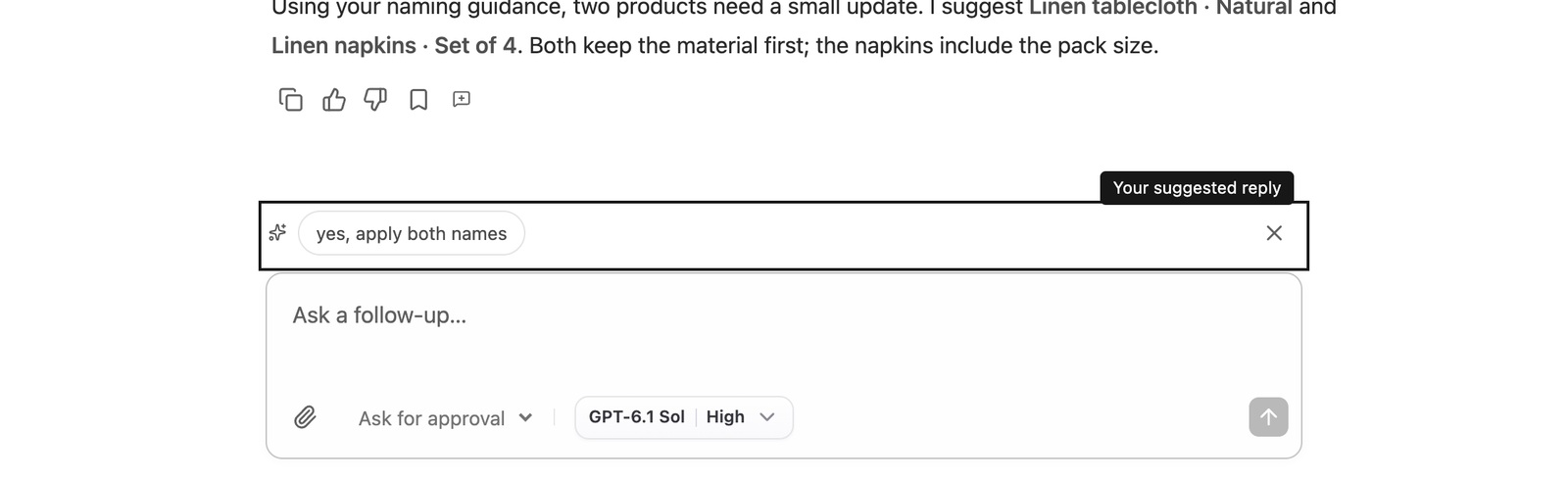
When Steward finishes an answer in a chat, a Suggested reply appears just above the message box: the one message you’re most likely to send next, written as you. It might answer a question Steward asked, give the go-ahead for the next step, or ask for the obvious follow-up.
- Select the suggestion. It’s copied into the message box, ready to edit.
- Change anything you like.
- Send it as usual.
Selecting a suggestion never sends it. Nothing reaches Steward until you send the message yourself.
The suggestion is prepared as soon as Steward finishes the answer, or as soon as you open the chat, so it usually appears right away, without a loading indicator. If you leave and come back, a finished suggestion is shown immediately and an unfinished one keeps being prepared.
Suggestions appear only while the message box is empty. As soon as you start typing, attach a file or send a message, the suggestion steps aside.
How the suggestion is written
A small, fast AI model writes the suggestion. It reads:
- Steward’s latest answer and the recent conversation before it, including teammates’ messages, so it knows what’s already been settled;
- your own recent messages in this workspace, including how you usually reply to Steward’s answers.
The suggestion follows how you write — for example all lowercase, no final full stop, or your usual emoji — even in chats where only teammates have written so far. Long pasted texts aren’t used to judge your style. It never uses other people’s messages to imitate their style, and it doesn’t invent figures or names that aren’t in the conversation. Check it before you send, just like anything you write.
Hide the suggestion
Select Hide suggestion (the × at the end of the row) to dismiss it for the current answer. A new suggestion comes with Steward’s next answer.
Turn suggested replies off
Open Settings → Profile and clear Show suggested replies. Suggestions stop straight away, and none are prepared for you any more.
Who sees suggestions
Only you. Each person gets their own suggestion, written in their own style. Teammates in the same chat don’t see yours, and you don’t see theirs. Suggestions aren’t added to the conversation, the shared context or the chat history.
Limitations
- A suggestion is offered only for the latest answer in a chat, and only once it has finished. It doesn’t appear while Steward is working, or after an answer that failed or was stopped.
- You need Contributor access or higher to the project. People with Viewer access can’t send messages, so they don’t get suggestions.
- If a suggestion can’t be created — for example, because of a temporary service problem — nothing appears. Reopen the chat a minute later to try again.
- The suggestion for an answer is created once and stays the same when you reopen the chat.