Choose how much thinking a request needs
Give a more involved question more room for analysis, or keep a straightforward request quick.

Find the thinking selector
Select Model and thinking level in the composer beside Permission mode. Select a model row or its chevron, then choose Medium, High, or Extra high. Every available model offers these three levels. See choose a model and thinking level for the available models and exact steps.
Choose the effort before sending a request. While a run is active, its thinking setting is fixed. A steering message uses the same run and does not change its thinking effort.
Match the effort to the question
For a direct lookup or a simple summary, start with a lower effort. For a question that involves reconciling several files, comparing explanations, or planning multiple steps, a higher effort can give Steward more room to work through it.
Higher effort may take longer and use more resources. It does not guarantee that an answer is correct. A precise question and good context still matter.
The available choices come from your workspace’s runtime configuration. If settings fail to load, use Retry settings before sending.
Follow a submitted request
Immediately after sending, a subtle three-dot indicator shows Working for … while the run is queued or waiting for its first visible response. It gives way to thinking summaries, approvals, or answer text as they arrive. It stops when the run ends or pauses; reduced-motion preferences keep the dots still.
Read a thinking summary
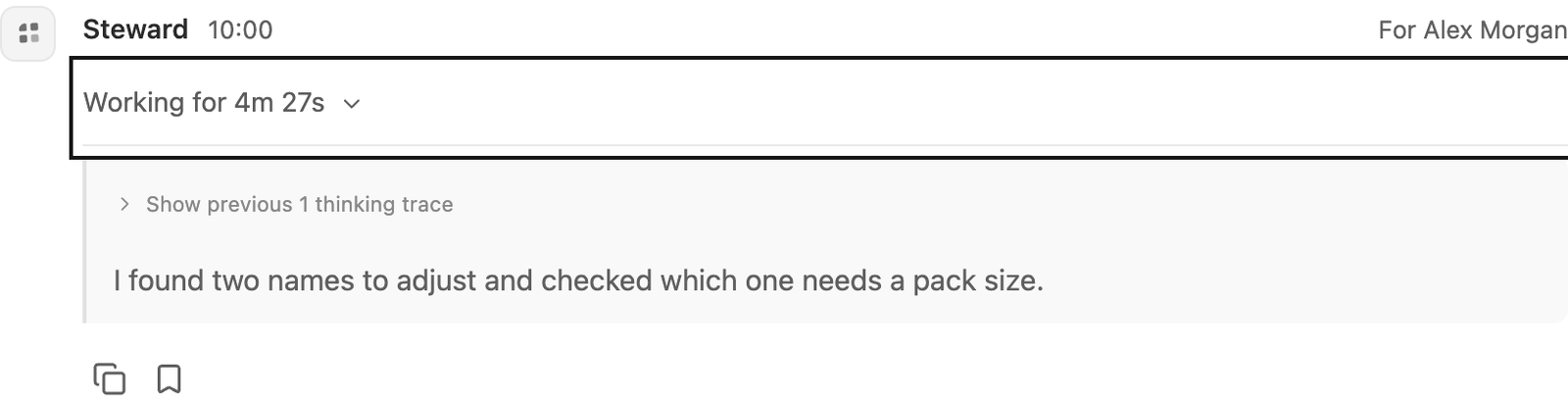
Above each response, the elapsed-time header shows Working for … while the run is active and Worked for … when it finishes. When thinking summaries are available, select this header to expand them and follow the text as it updates. Select it again to collapse them. The latest trace appears directly below the control. Older traces are folded into Show previous N thinking traces, so you can reach the current text without scrolling through earlier steps. Expand that inner control to inspect the earlier traces; it folds again when a new current trace arrives. Your outer expansion stays in place as new text arrives.
The time updates once a second while the run is active. When a run waits for approval or input, it shows Paused after …; a failed or cancelled run shows Stopped after …. Completed times use saved run timestamps and stay fixed when you reopen the chat. The duration is elapsed time since submission, including queue and approval waiting time; it is not model-only compute time. Older chats without timing data keep a thinking-history label.
The time header gently pulses while Steward is thinking; reduced-motion preferences keep it still. When the answer starts or the run stops or pauses, the summaries fold above the answer. Select the time header to open or close them. Anyone who can view the conversation can use this control; it does not require edit access. With a keyboard, focus it and press Enter or Space. Responses with no thinking summaries show the duration without an expand control.
These are brief, provider-supplied summaries of the approach, not a complete record of every internal step. Some runs have no summaries. Read the final answer, evidence, and any execution results to assess the outcome. See answers and downloads for the rest of the response.
Keep permission mode separate
Thinking effort controls how the model approaches a request. Permission mode controls whether business-tool changes are allowed and when approval is required.
Giving a request more thinking effort never grants more connection access or removes a requirement for approval. See permission modes when deciding how changes should be handled.