Choose connection permissions
Choose who can add a connection to projects or administer it. Project members use configured connections through their project role.
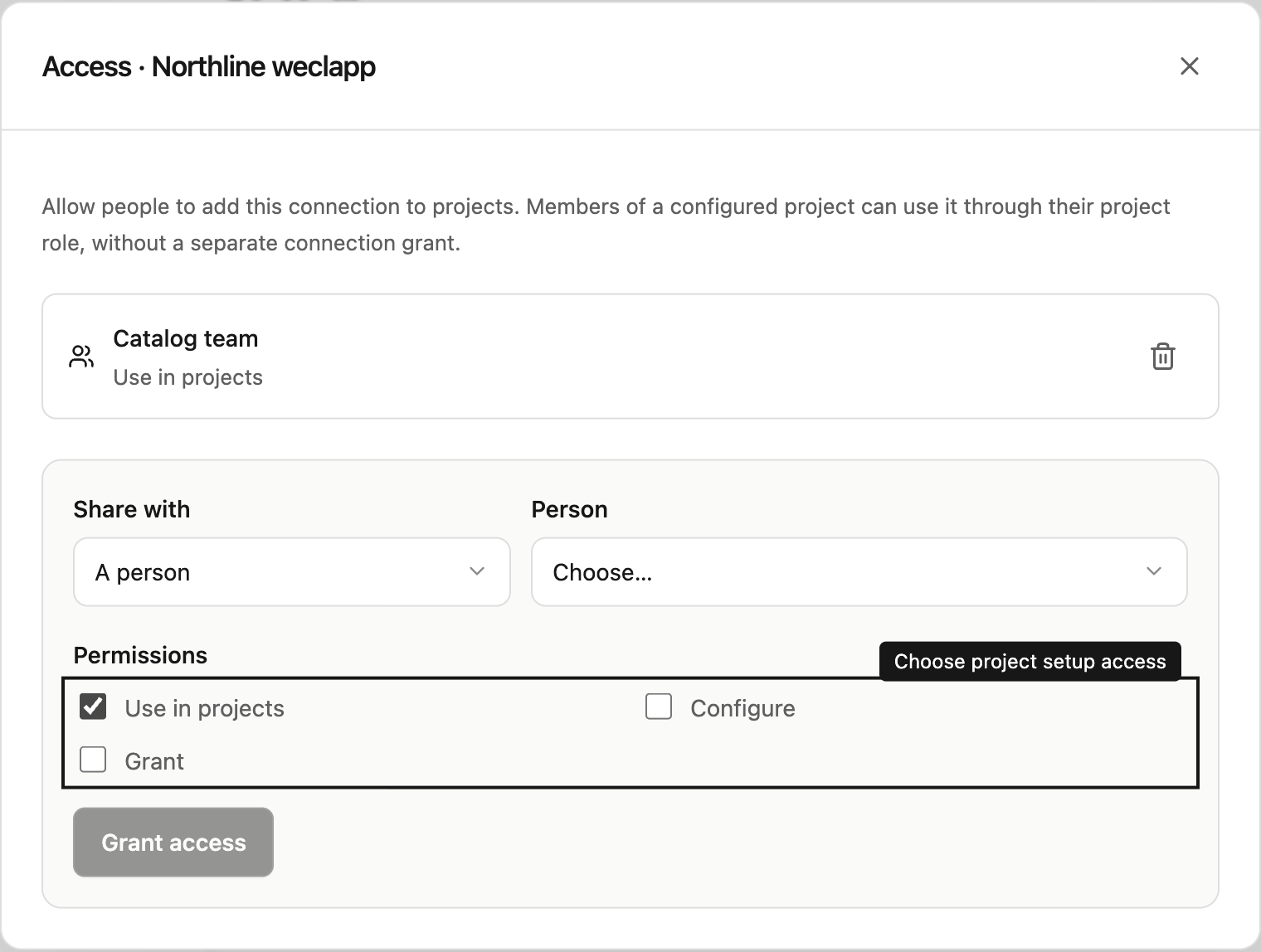
Open connection access
Go to Settings → Connections → Access. Choose a person or team, select Use in projects, Configure or Grant, then select Grant access. You need Grant access or a workspace owner or administrator role to manage these settings.
What each permission means
| Permission | What the person can do |
|---|---|
| Use in projects | Add the connection to a project they manage. |
| Configure | Maintain connection settings and approval rules. |
| Grant | Manage who can add or administer this connection. |
Connection access controls project setup: Use in projects lets a project manager add the connection to a project. Configure maintains credentials and approval rules; Grant manages this setup access. Workspace owners and administrators have all three. Joining a project does not let a member add its connections to other projects or manage credentials.
A practical example
A sales analyst joins as a Contributor and can investigate sales data and prepare changes. A sales manager joins as a Manager and can approve proposals. Both use the connection already configured for the project.
Enabling a connection is a separate step
Enable the connection for a project, then invite colleagues to that project with the appropriate project role. They can use the configured connection without a separate connection grant.
Project members use the connections enabled for their project without a separate connection grant. Viewers follow results and download shared files. Contributors ask questions and prepare changes. Managers also approve changes. Chat modes, connection approval rules and the business tool’s own access limits still apply.
Check access when responsibilities change
If a connection is enabled, check the person’s project role and team membership. A Contributor can use it in chat; a Manager can also approve changes. To stop project use, remove project access or disable the connection for that project. Removing Use in projects only prevents adding it to further projects.
You need Manager access to the proposal’s project to approve or reject changes. Contributors can prepare changes and review the details. Approval rechecks the executor’s current project access and the enabled connection before execution.
ASA account permissions
Steward uses the project role and chat mode to authorize ASA work. ASA separately checks the saved account’s method permissions and licensed modules. SOAP reads work in Read only mode even though they use POST. The observed-access panel is advisory and never grants access.