Review and decide on proposed changes
See what will change, inspect each item, and approve or cancel the whole batch.
Recognize an approval request
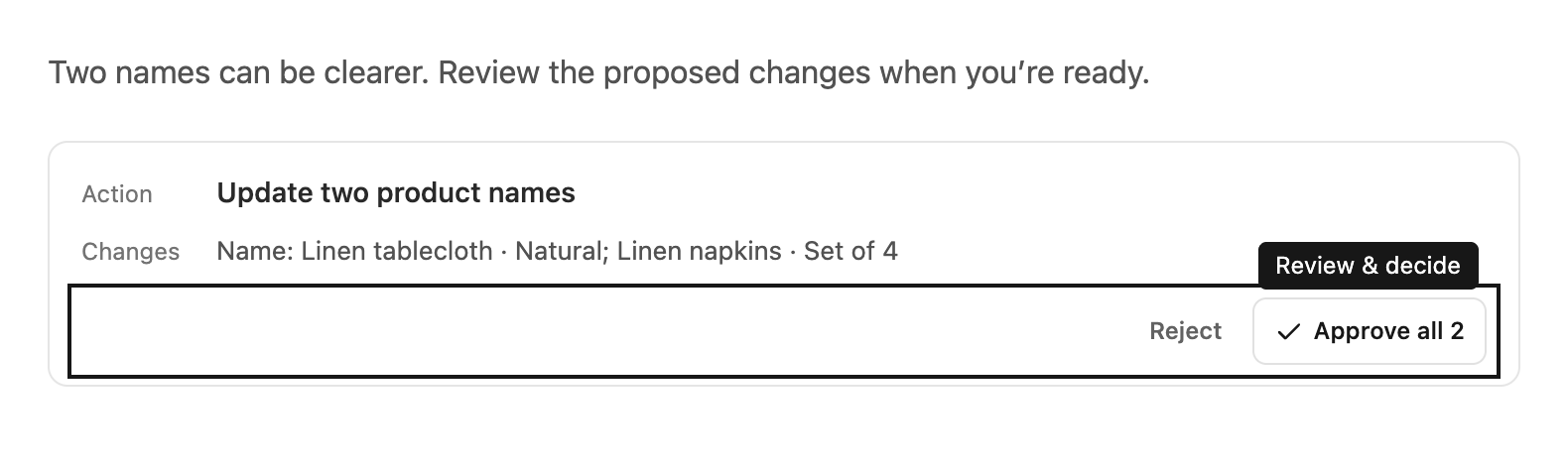
An approval appears as a compact card in the conversation. Action names the request; Change or Changes shows a short preview of the proposed values or affected fields. Long names and values are shortened here. A small chevron beside the change summary opens the details. Reject and Approve appear underneath when you can decide.
A proposal is a prepared set of changes. Its presence does not mean those changes have already been made.
Review the details
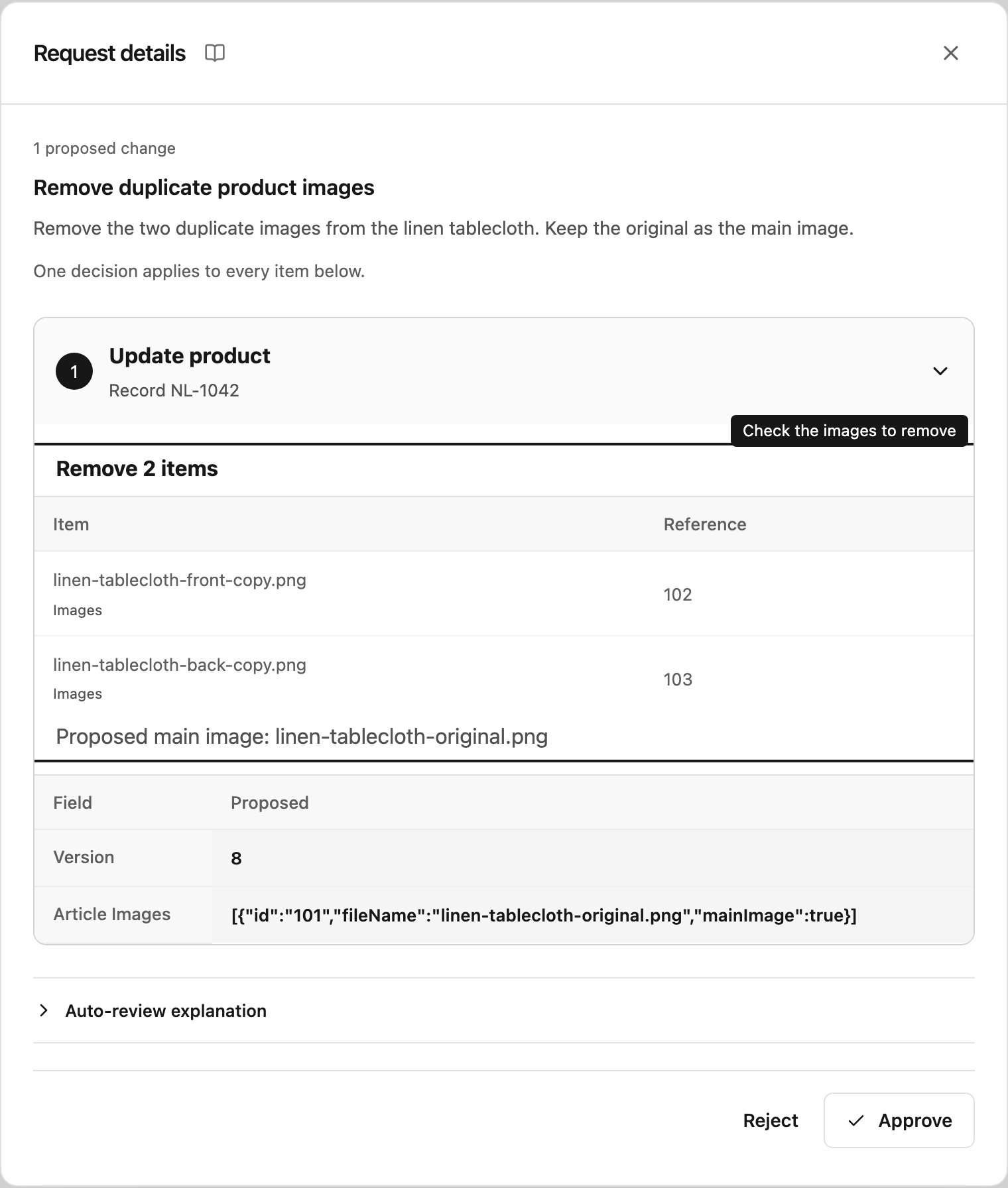
Select the chevron beside the change summary to open Request details. The control is named View request details for screen readers. Read the full request summary, then inspect each numbered item. For field updates, the comparison shows the field name, its current value when available, and the proposed value. When available, the exact request includes its method, path, content type and query parameters. Select Show body to inspect the submitted body; binary bodies appear as Base64.
Expand Auto-review explanation below the items to read the independent request description, data used, business effect and notes. It describes the request type; your decision applies to the exact values in this proposal. Some request types may be held for additional review.
Select the small book icon beside Request details to open this guide in a new tab. Its tooltip and screen-reader name are How approvals work.
You can collapse individual items to focus on one part of a larger batch. Close the dialog to return to the conversation without making a decision.
Approve or cancel
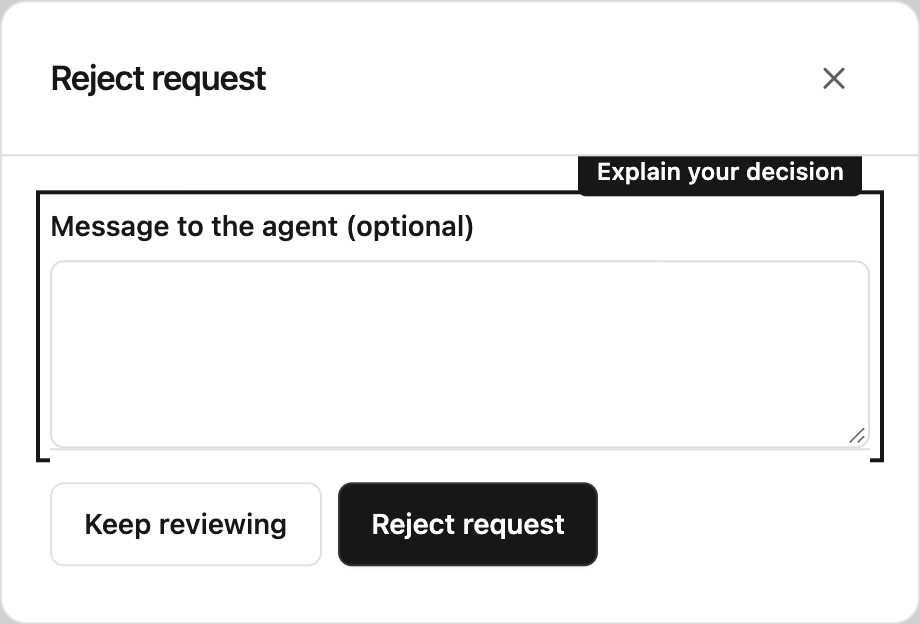
Approve allows the whole batch to proceed. When there are multiple items, the button states how many you are approving. Reject opens a dialog where you can enter an optional message, then Reject request declines the whole batch. The agent and an awaiting Python request receive that message. Closing the dialog keeps the request pending.
You cannot approve only part of a batch or edit a proposed value inside the review. To change the scope, cancel and describe the revision in the chat. Steward can prepare a new proposal.
You need Manager access to the proposal’s project to approve or reject changes. Contributors can prepare changes and review the details. Approval rechecks the executor’s current project access and the enabled connection before execution.
Follow what happens next
After the decision, the card retains its status in the conversation. Steward’s continuation appears after the approval request. Select the chevron beside the change summary again to see who decided, any rejection message and execution results when they become available.
Approval and successful execution are different steps. An approved batch can still encounter a changed record, lost access, a changed request mapping, or a tool error. Read the results and the follow-up answer before assuming all items succeeded.
A task may need several proposals. For a product with sale and purchase prices, check that the product exists, the sale price uses the intended gross or net basis, and the supplier purchase price is saved and linked. Incomplete new prices are rejected before a proposal is prepared; ask Steward to correct the missing details. If a later step awaits approval, continue using the existing product number instead of creating the product again.
An order, its delivery note, and sending the document are also separate steps. A created order does not confirm that a delivery note exists or has been sent. Review the recorded result for each step and approve the next proposal when it appears.
Handle an uncertain outcome
If a result says an outcome is unknown, ask the person responsible for the business tool to check the affected records before repeating the change. A new request could otherwise repeat work that already happened.
Independent request descriptions
New WeClapp proposals include a description from an independent model. It explains the data used and the business effect without seeing the working assistant’s conversation or the actual business values. Select the chevron beside the change summary, then expand Auto-review explanation to read it alongside the exact current and proposed values. Use Approve or Reject for the entire batch. If the independent model is unavailable, the explanation is marked Unavailable and shows the API description. The exact proposed values remain the basis for your decision. Ordinary reads and supported changes follow your permissions; you do not need to approve each selected field or filter. See requests held for review if Steward cannot prepare a proposal.
Python requests awaiting approval
Python requests use the same proposal cards. Approving reconnects the retained script and delivers the provider response; rejecting returns your message as an application error. Waiting is limited to 30 minutes cumulatively per script. Proposals have no expiry. If the process is lost, cancelled or times out, the script is never replayed automatically. A confirmed request outcome remains recorded and can be inspected through the proposal.
Review image and list removals
When Steward prepares a WeClapp image cleanup, the card shows how many images will be removed and how many records are affected. Open Request details and check Items to remove for each product: it lists the filenames and references from the record Steward read. An explicitly selected main image is also shown. Compare these details with your request before approving.
Removing list entries always requires approval, including in Automatic mode. You need Manager access to the proposal’s project, as for other proposals. Properties omitted from a partial edit stay unchanged. A supplied image or ordinary list contains the entries to keep; omitted entries are removed. Fixed custom-attribute lists preserve omitted definitions. If you remove the main image and keep other images, specify which one should become the main image. Removing every image is also possible.
If the record or a supplied member version has changed, the operation can fail. Ask Steward to read the record again and prepare a fresh proposal; an approval does not override a version conflict.