Understand roles and access
Learn how workspace roles, project roles, and connection permissions fit together.
Three choices shape your access
Your workspace role controls administration. Your project role controls collaboration and use of the project’s enabled connections. Separate connection access is needed only to add a connection to a project or administer it.
All three matter. Being able to read a chat does not automatically mean you can change the business records discussed there.
Workspace roles
| Role | What it means |
|---|---|
| Owner | Owns and administers the workspace, can access every project, and manages connection settings and access. |
| Administrator | Manages people, teams, and connections, and can access every project. |
| Member | Can create projects and use projects and connections shared with them. |
Joining a workspace as a Member does not give access to all existing projects or connections. An invitation and a project share are separate steps.
Workspace owners and administrators have Manager access to every project and can use its enabled connections. No additional Read, Write or Approve grant is needed.
Project roles
| Role | What it lets you do |
|---|---|
| Viewer | Read the project’s conversations, shared context, and files, comment on messages, and rate Steward’s answers. |
| Contributor | Take part in chats and maintain shared notes, bookmarks, and files. |
| Manager | Do the above, edit project details and instructions, manage sharing and connections, and archive or delete the project. |
Project members can see all chats in that project. Unsent drafts remain private to their author. Only the person who started a run can add guidance while it is running.
Direct access and team access
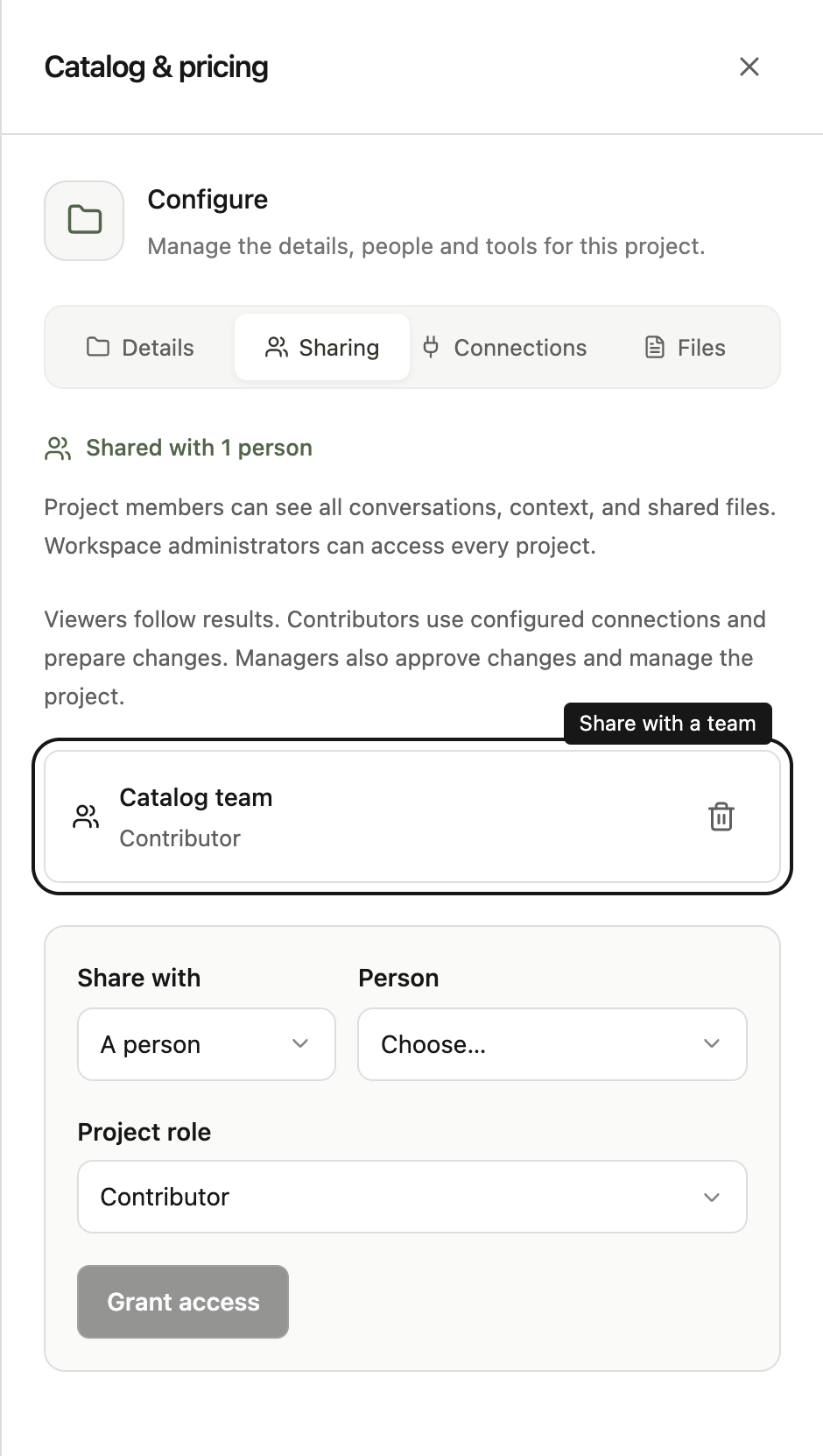
You can receive access personally or through a team. Your effective access combines these grants. If you are a Contributor directly and a Manager through a team, you have Manager access.
Removing one direct grant may not remove access received through a team. Workspace owners and administrators also retain their administrative access.
Every project keeps at least one Manager. To lower or remove the last Manager’s access, including your own, first give Manager access to another person or team.
Choose access for the job
Give a colleague Viewer access when they only need to follow work, Contributor access when they need to participate, and Manager access when they should organize the project.
Project members use the connections enabled for their project without a separate connection grant. Viewers follow results and download shared files. Contributors ask questions and prepare changes. Managers also approve changes. Chat modes, connection approval rules and the business tool’s own access limits still apply.