Create a scheduled task
Have Steward check recurring business work at a time you choose.
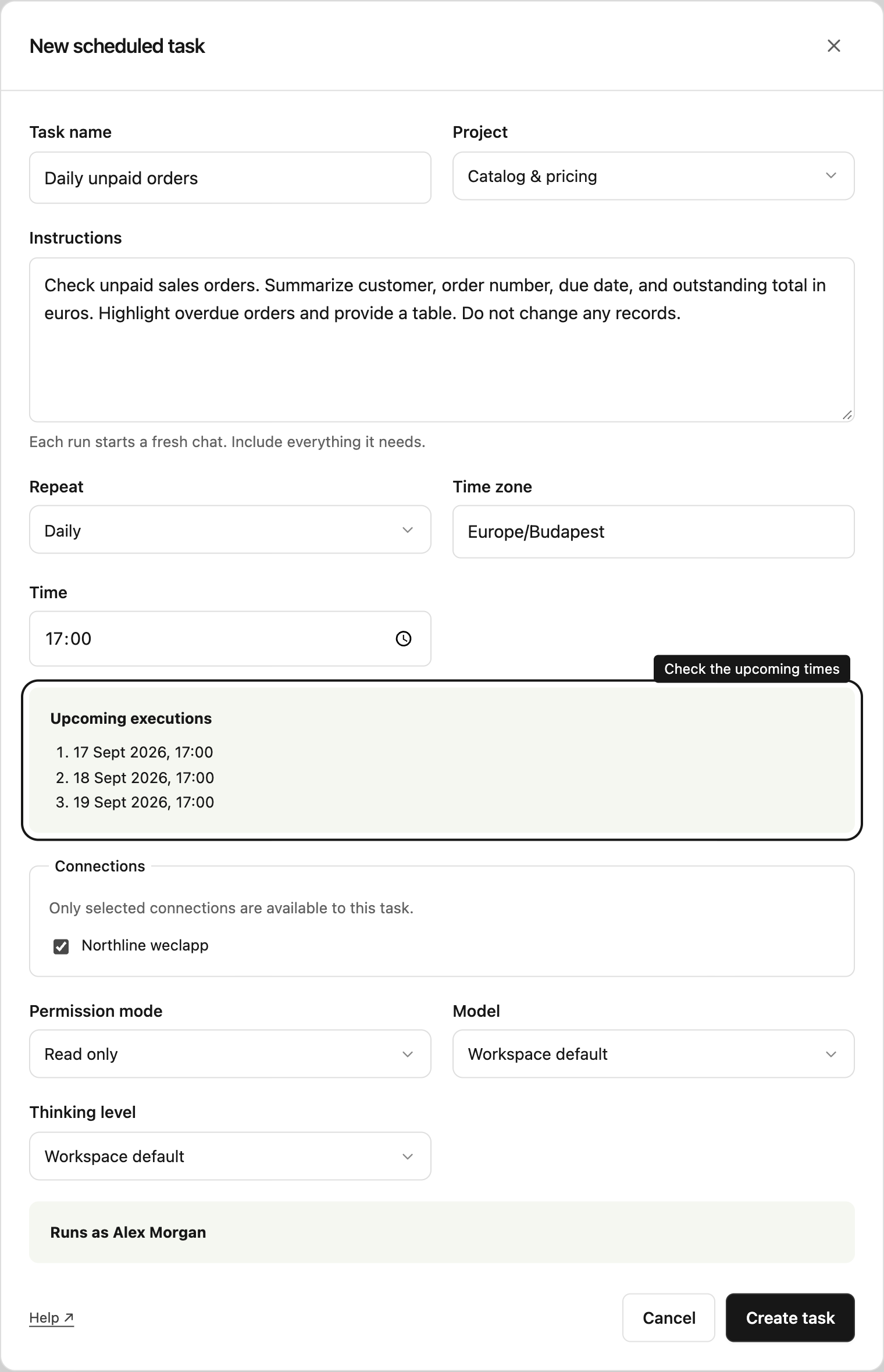
What a scheduled task does
A scheduled task saves instructions and starts a fresh project chat each time it runs. Use it for a daily unpaid-order check, a weekly stock review, or a one-time reminder to analyze information. Results and requests for attention appear inside Steward.
The task belongs to the project. People with Viewer access or higher can inspect it and its results. You need Manager access to create or manage it; workspace owners and administrators have this access to every project.
Before you start
Enable the connection for a project, then invite colleagues to that project with the appropriate project role. They can use the configured connection without a separate connection grant.
Write instructions that make sense on their own. Earlier chat messages and attachments are not carried into scheduled runs. Each run uses the project’s current shared context.
Set up the task
- Open Scheduled in the workspace navigation and select New task.
- Enter a name, choose the project, and write the instructions. Include the records to check, the output you want, and any boundaries.
- Choose Daily, Weekly, Interval, or Once from Repeat. For Weekly, select the days. Enter the time or interval and check the Time zone. The initial zone is your browser’s time zone.
- Review Upcoming executions. Calendar schedules follow the local clock in the selected zone. Intervals follow elapsed time and must be at least one minute.
- Select the Connections the task needs. Initially none are selected. An empty selection gives the run no connection access.
- Choose the Permission mode. The default is Ask for approval. You may also select a model and thinking level; leaving either at Workspace default resolves it when each run starts.
- Check Runs as, then select Create task. Open the task and use Run now to try it immediately.
Example: unpaid orders every day at 17:00
Name the task Daily unpaid orders. Select Daily, enter 17:00, and set the zone to Europe/Budapest. Select your order-system connection and choose Read only.
Check unpaid sales orders. Summarize customer, order number, due date, and outstanding total in euros. Highlight overdue orders and provide a table. Do not change any records.
Select Run now to check that the connection contains the information you need. Refine the saved instructions if the report needs a different scope. The recurring schedule remains unchanged after a manual run.
Timing and limits
You can close Steward after saving; the worker runs the schedule on the server. Dispatch can be a few seconds after the displayed time, and results take additional time to produce. After a service interruption, Steward dispatches one delayed occurrence and advances to the next future time. It does not replay every missed occurrence.
When clocks move forward, a nonexistent calendar time is skipped. When a time repeats as clocks move back, it runs once at the first occurrence. Check the preview when choosing a time near a clock change.
The first version delivers results in the app. Email and push delivery, monthly schedules, event triggers, assistant-created schedules, and runs that continue an existing chat are not available.