Manage tasks and review results
Find completed work, handle attention states, and change a schedule.
Find a task
Open Scheduled. Filter by Project or Status to find active, paused, finished one-time tasks, or tasks that need attention. Each card shows its schedule, next execution, Runs as, and latest result. Open a card to inspect its instructions, access settings, and Run history.
Viewer access to the project is enough to inspect tasks and results. The management controls require Manager access.
Review a run
- Open the task’s Run history.
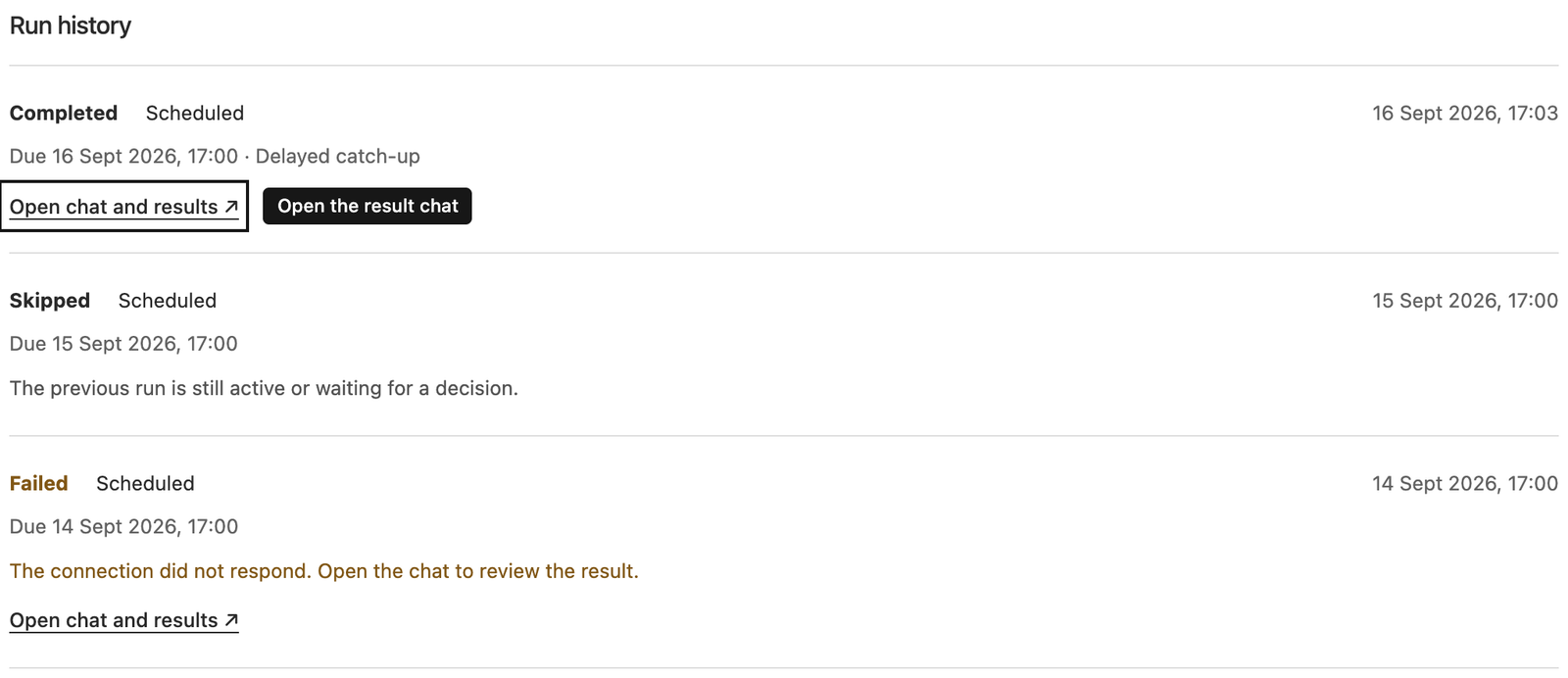
- Read the status and any explanation. Needs approval and Needs input mean the chat is waiting for a decision or response.
- Select Open chat to see the full result, downloadable files, or pending proposal. Any decision uses your own current permissions.
- Use Load older runs to load earlier history.
An approval wait can last until someone responds. Steward allows one active run per task, including runs waiting for approval or input. Later occurrences are recorded as Skipped while that run is active. They are not replayed after the decision. Review Approvals to finish the waiting work.
A Delayed catch-up label means the occurrence was dispatched later than planned after a service interruption. A failed run remains visible. Ordinary failures do not automatically pause the task or retry that occurrence; check the error and the next scheduled time.
Change the task
Select Edit, make the changes, check the upcoming executions, and choose Save changes. If another manager has edited the task, reload the current version before saving again.
Changing instructions, timing, connections, permission mode, model, or thinking level transfers future execution authority to you. The form shows this change under Runs as before you save. Renaming a task preserves its executor. Already-dispatched runs keep their original settings.
To transfer future execution authority without changing the instructions, select Take over and confirm. See Task permissions.
Run, pause, resume, or delete
| Action | Result |
|---|---|
| Run now | Starts an additional fresh chat using the saved task settings. It is available while paused and leaves the recurring schedule unchanged. An existing active run must finish or be stopped first. |
| Pause | Prevents new scheduled dispatches. Work already dispatched continues. |
| Resume | Rechecks the executor’s access and starts with the next future occurrence. Time spent intentionally paused is not backfilled. |
| Delete | Stops future dispatches and removes the task from the list. Existing chats and run history remain accessible to people with project access. |
To stop work already underway, open its chat and select Stop run beside the send button. The person the task runs as and project managers can do this; see Stop a run. Pausing or deleting its schedule does not cancel that run.
Deleting a schedule does not revoke a previously dispatched run’s frozen connection selection or current grants. To remove connection access, change the underlying permissions or project binding.