Choose your avatar and see who is in a chat
Make an animal friend or upload a photo, and see who wrote recently or is typing.
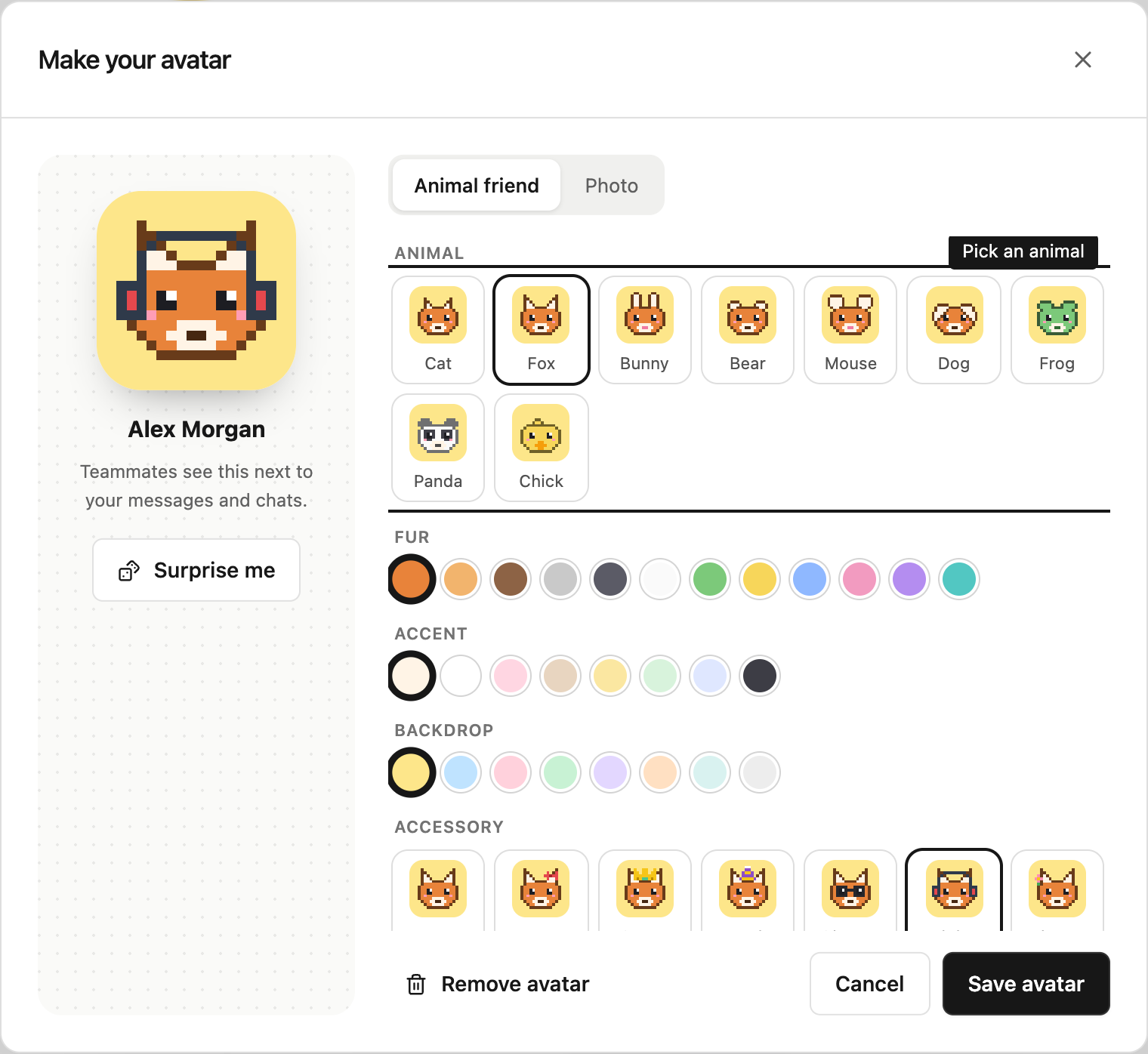
Make an animal friend
Open the workspace menu at the bottom of the sidebar and select Your avatar. You can also open Settings → Profile and select Customize avatar.
On the Animal friend tab, choose an animal, then pick the Fur, Accent and Backdrop colours, an Accessory and a Mood. Select Surprise me for a random combination. When you like the preview, select Save avatar.
Until you have an avatar, Steward may show a small Pick an animal friend card near the workspace menu. Select Make my avatar to start, or Maybe later to hide it. It waits a few days before asking again, then two weeks, and stops after the third time.
Upload a photo
In the same window, select Photo, then Choose a photo, or drag an image onto that area. PNG, JPEG, WebP and GIF files work. Steward crops the picture to a centred square and keeps a small copy, so an animated GIF becomes a still image. Select Save avatar.
To go back to your initials, select Remove avatar.
See who is using a chat
Next to each chat in the sidebar, Steward shows who wrote in it most recently. When one person wrote, you see their avatar. When several people wrote, the four most recent appear together as a small collage. Point at it to see their names.
A chat nobody has written in yet shows the person who created it. Answers from Steward do not count as writing in a chat.
See when teammates are typing
When a colleague is writing in the chat you have open, their avatar bounces above the message box with a note such as “Jordan Lee is typing…”. The note disappears when they send the message, clear it, or stop typing for a few seconds. Your own typing is not shown to you.
Only people who can send messages in the project, contributors and managers, appear. Viewers never show as typing. See Roles and access.
Who sees your avatar
Everyone in your workspace sees your avatar next to your messages, in Settings → People and in the sidebar. A change updates everywhere, including earlier messages. Public share links do not show avatars. See Share a result.