Manage billing and payment
Add your business details and a card, follow this month's estimate, and review past months.
Open billing
Workspace owners and administrators open Settings → Billing. Members don’t see billing. The page appears once billing is active for your workspace.
If billing setup is incomplete, a banner links owners and administrators to Billing settings. It shows November 1 as the billing start date. Members are asked to contact an owner or administrator. Onboarding and app update notices take priority, so reminders do not stack.
Add your business details
Steward is for businesses in the European Union. Before you add a card, save the details that go on your invoices:
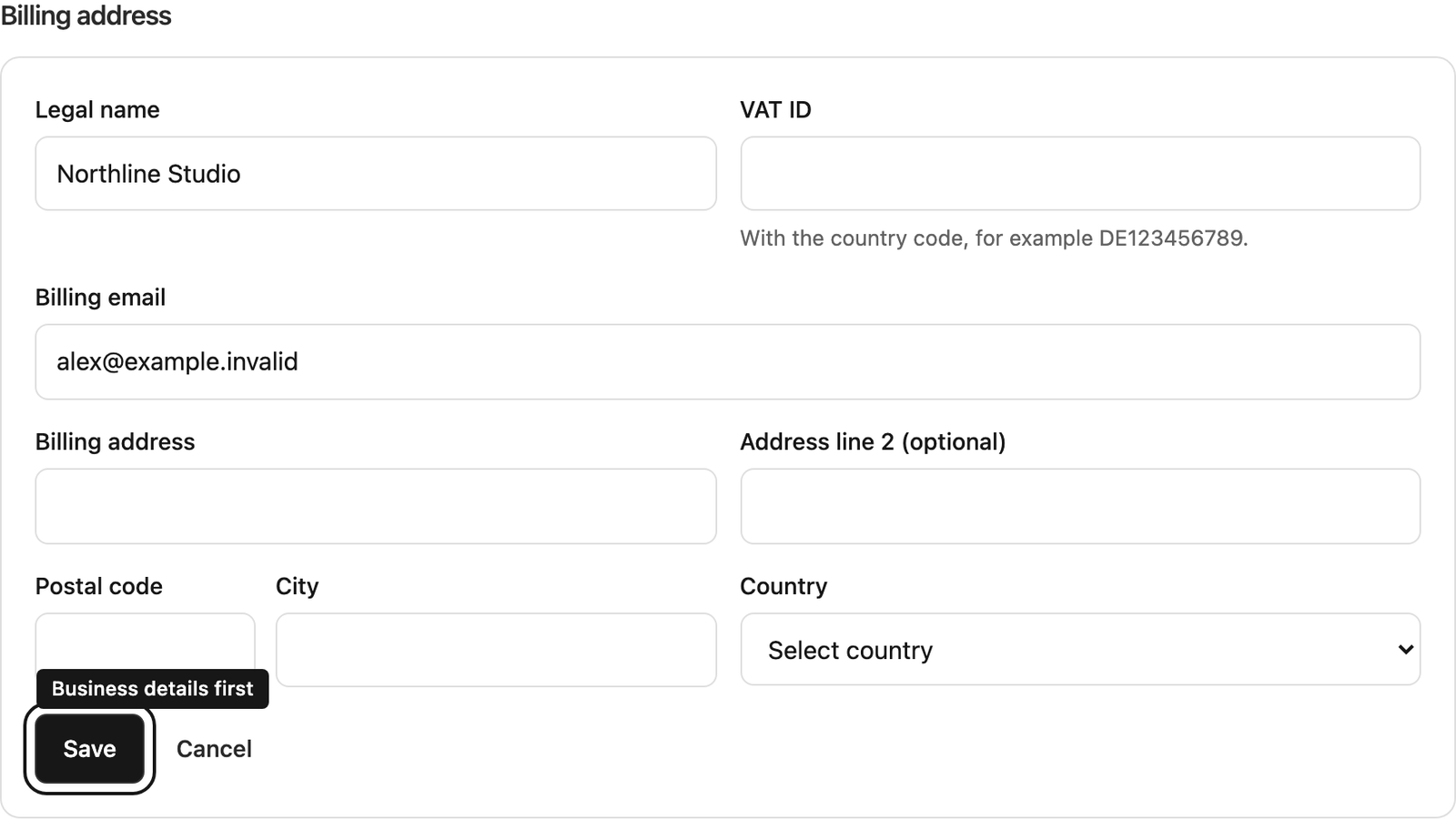
- Under Billing address, select Add address, then check Legal name. Steward suggests your workspace name; change it to the company’s registered name.
- Enter the VAT ID with its country code, for example DE123456789. Spaces, dots and dashes don’t matter. Greek numbers start with EL.
- Check the Billing email. Use the address your company uses for billing.
- Enter the Billing address, Postal code, City and Country. Address line 2 is optional.
- Select Save.
VAT IDs from outside the EU, including the UK, Switzerland and Norway, can’t be used. After you save, the VAT ID is checked with the EU’s VIES service. This usually takes a few minutes, and you can add the card in the meantime. Next to the VAT ID you’ll see Checking, then Verified. If it shows Couldn’t be verified, check the number, select Edit and save it again. Couldn’t be checked means VIES didn’t answer; the Steward team checks the number by hand, and saving it again asks for a new check.
To change the details later, select Edit next to them.
Add or change the card
- Under Payment, select Add card. The secure card form opens inside Steward.
- Enter the card number, expiry date and security code. Your saved billing details are used automatically.
- Check the monthly billing authorization and select Save card. Adding a card does not charge it.
- Complete any verification requested by your bank. Most checks open over the page; if your bank redirects you, return to Steward to finish. Card saved. confirms completion.
Select Replace card to change the payment method. The existing card stays active until the replacement is saved successfully. Cancelling or failing verification keeps the existing card.
Company name, VAT ID, billing email and address are managed separately under Payment and copied to Stripe. Card details go directly to Stripe; Steward never sees or stores the full card number. Apple Pay is not included in this card flow.
How the price works
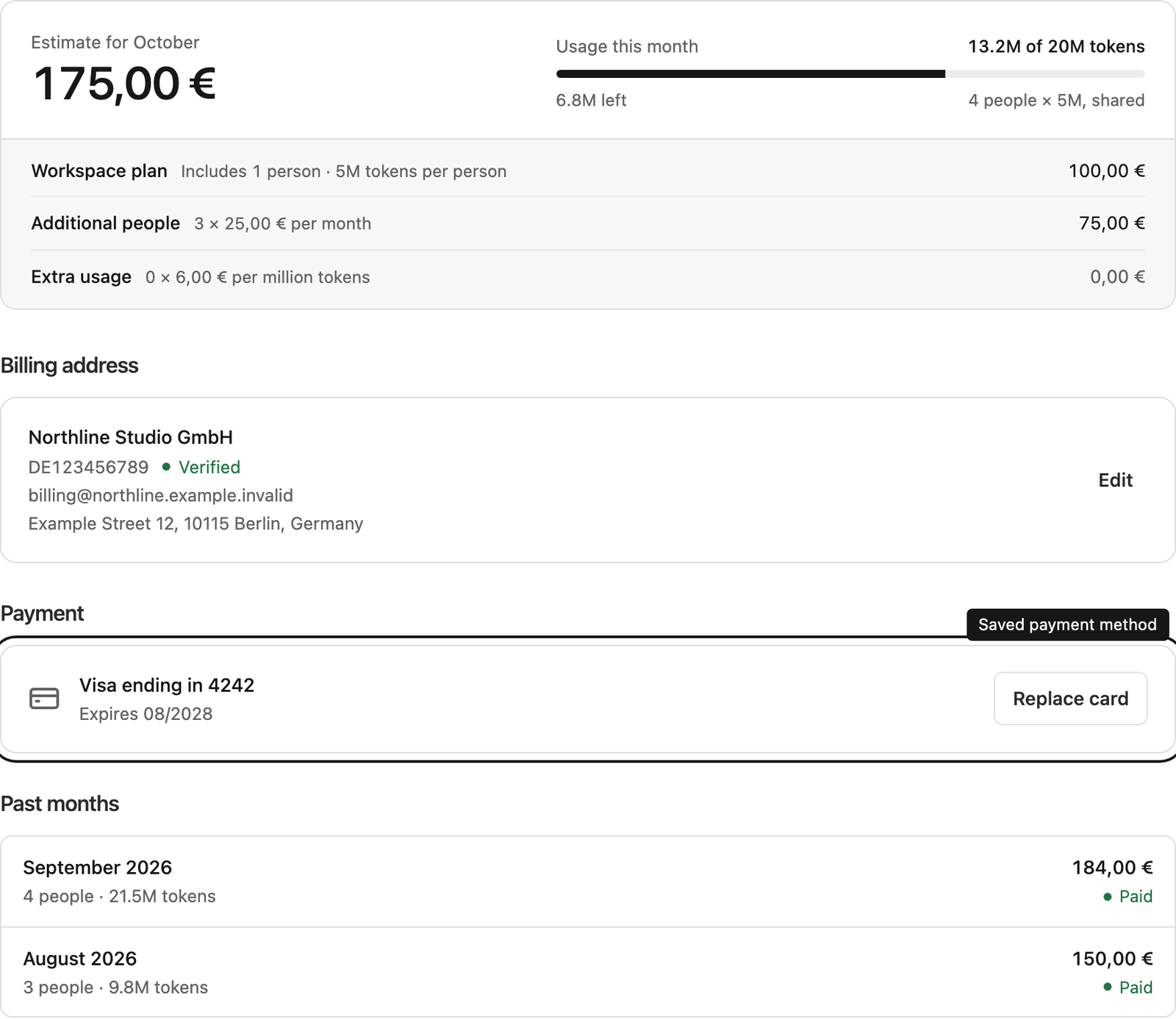
Each workspace pays one monthly price. The estimate at the top of Billing lists each part with its price:
- Workspace plan includes the first person and a fixed number of tokens per person.
- Additional people adds a fixed monthly amount for each person beyond the first.
- Every person adds their tokens to an allowance that the whole workspace shares. Tokens measure what the AI reads and writes in your conversations.
- Extra usage: tokens beyond the allowance are charged per million.
People are counted at the end of the billed month. Later membership changes do not change that month’s count. Steward team members who help your workspace are not counted as people, but the work they do for you, such as onboarding or entering requests on your behalf, counts toward your usage. Image generation is not charged separately.
When you are charged
Billing starts on November 1, 2026. Monthly charges cover a calendar month, with no daily proration. November is reviewed in December and charged from December 5. Shortly after each month ends, Steward calculates one amount: the workspace price, any additional people and any extra usage. The Steward team reviews every amount before it is charged. The card is charged on the 5th of the following month. A month that credit covers completely isn’t charged to the card.
Credit, for example from inviting other businesses, is taken off the amount automatically. Credit this month doesn’t use appears under the estimate as credit left for later months, and Past months shows how much each month used. A new workspace can also enter an invite code at the top of the page under Have an invite code?.
If a payment fails, the page says so above the card and the month shows Failed. Update the card with Replace card. The payment is not retried automatically; the Steward team retries it after the card is updated.
Follow usage during the month
The top of the page shows the amount estimated for this month so far and how much of the shared allowance is used. Past the allowance, the bar shows the extra tokens in a separate colour. Below, the estimate is broken down into Workspace plan, Additional people and Extra usage. If credit will apply, the estimate already has it taken off and says how much, for example after 50,00 € credit. Before billing starts, the estimate shows the start date, and the breakdown shows what the month would cost as Not charged before billing starts. If payment setup is incomplete, it asks you to add a payment method. The estimate changes as people join or leave and as usage grows, until the month ends. Once the first month is billed, Past months lists each month with its amount and status.
Changes to the card, the business details and monthly charges appear in the audit log.