Bring people and teams into your workspace
Invite colleagues and share the right projects and tools with them.
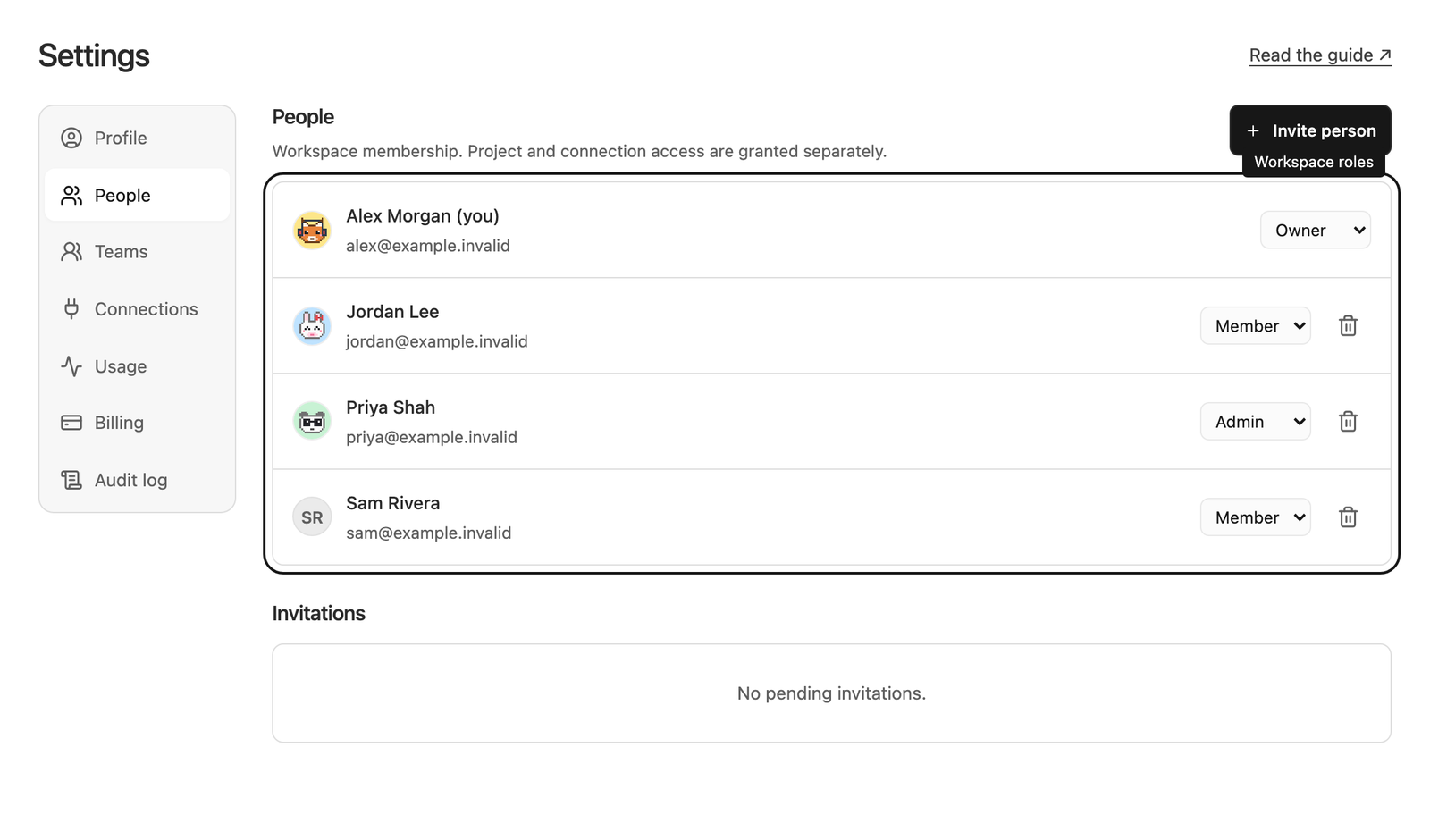
Invite a colleague
Workspace owners and administrators manage people. Open Settings → People, select the invitation action, enter the colleague’s email, and choose Member or Administrator. Send the invitation.
An Administrator has broad workspace access. Choose Member when the person should only use the projects and connections you share with them.
Pending invitations appear in People. You can remove a pending invitation when it is no longer needed. An invited colleague joins through the email sent to that address. Invitations stay open for seven days. Sending the invitation again replaces the earlier email, so ask the colleague to use the newest one. If they cannot find it, they can sign in with the invited email address while the invitation is still open. See Accept an invitation.
Share the work after they join
Membership alone does not give a Member access to existing projects or connections. Open a project’s Sharing tab to add the person with the appropriate role. Use a connection’s Access action to grant its separate capabilities.
A sales analyst joins as a Contributor and can investigate sales data and prepare changes. A sales manager joins as a Manager and can approve proposals. Both use the connection already configured for the project.
Create a team
Go to Settings → Teams, select Create team, give it a name, and select its members. Save the team.
A team lets you share with a group in one step. In project Sharing or connection Access, choose Team instead of an individual and select the group you created.
Keep team membership current
Edit the team when people join, leave, or change responsibilities. A person can receive access through more than one team as well as through direct grants. Review all of those routes when changing access.
Deleting a team or removing a team member does not remove unrelated direct grants. Owners and administrators keep their administrative access.
Help someone who cannot see a project
Check their email, workspace membership, project grant, and team memberships. Then check the project is still active. For business-tool questions, also confirm the connection is enabled for the project and the person has the required capabilities.