Invite businesses and earn credit
Share your invite link or code. The business you invite gets welcome credit on its first invoice, and your workspace earns credit once it is set up.

Invite other businesses to Steward from Invite & earn in the sidebar. The business you invite gets welcome credit on its first invoice, and once it has finished a few setup steps in time, your workspace gets a reward as credit. The amounts and steps in this guide are examples: Invite & earn always shows the current ones.
The colorful Invite & earn badge sits above your account menu at the bottom of the sidebar. It opens the current offer and your invite progress.
What you and the other business get
The top of Invite & earn shows the current offer, for example Give 50 €, get 200 €:
- The business you invite gets the welcome credit, here 50 €, taken off its first invoice.
- Your workspace gets the reward, here 200 €, as credit once the new business has finished its steps.
Credit is applied to your next invoices automatically. Owners and administrators see the balance under Settings → Billing, and each statement shows the credit that was used. While a promotion runs, Offer ends shows its last day.
Once you have invited someone, you see your Credit earned, how many Businesses joined, and the credit that is On the way from businesses that are still finishing their steps.
Who can invite
Everyone in a workspace can open Invite & earn and invite businesses. Rewards go to the workspace, not to a person. Only new businesses count: to add colleagues to your own workspace, use Settings → People instead, as described in People and teams.
Share your link or code
Under Your invite link:
- Select Copy link and paste the link wherever you like, for example in a message or a newsletter.
- Or select Write an email to open your email app with a ready-made message that contains the link. On phones and tablets, Share opens the device’s share options.
- Code shows the same invite as a short code. Select it to copy it.
Anyone can use the link. It shows the welcome credit and helps the other business create its own workspace. A business that signed up in the last 30 days can enter your code instead, before its first invoice, as described in If you were invited.
Invite by email
Under Invite by email, type or paste up to 10 email addresses, separated by commas, and select Send invite. Steward sends each address a personal invitation, with your name if you’ve added one to your profile. Afterwards you see what happened to each address:
- Invitation sent: the invitation is on its way.
- Already a teammate in this workspace: the person already works with you in Steward.
- Already invited: an invitation from this workspace to this address is still open.
- We couldn’t email this address. Share your link instead.: for example because the address already has an open invitation from someone else, or the email couldn’t be delivered. Send your link yourself.
- That’s you: you can’t invite your own address.
- Daily invite limit reached — try again tomorrow or share your link: you can send a limited number of invitations per day. Addresses over the limit aren’t sent; the others are handled as usual.
People who already have a Steward account aren’t emailed. Their result still says Invitation sent, so the list never reveals who uses Steward. Give them your code instead: they can enter it in a new workspace within its first 30 days.
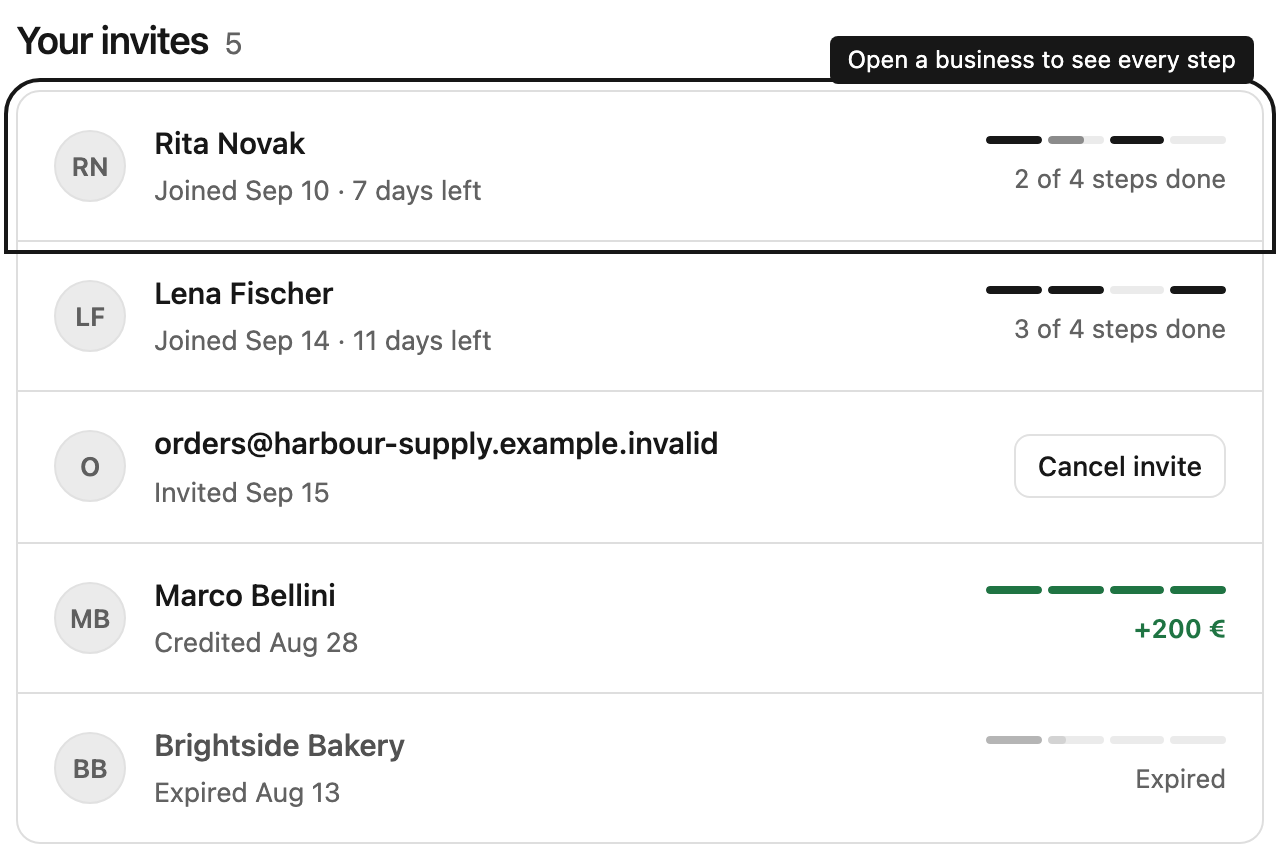
Each address can have one open invitation at a time; the first one sent counts. An invitation that isn’t used within 60 days lapses and is removed from Your invites. To withdraw an invitation nobody has used yet, select Cancel invite in its row under Your invites. Your link keeps working.
If Invite by email isn’t shown, Steward isn’t sending invitations at the moment. Share your link or code, or use Write an email.
What the new business needs to do
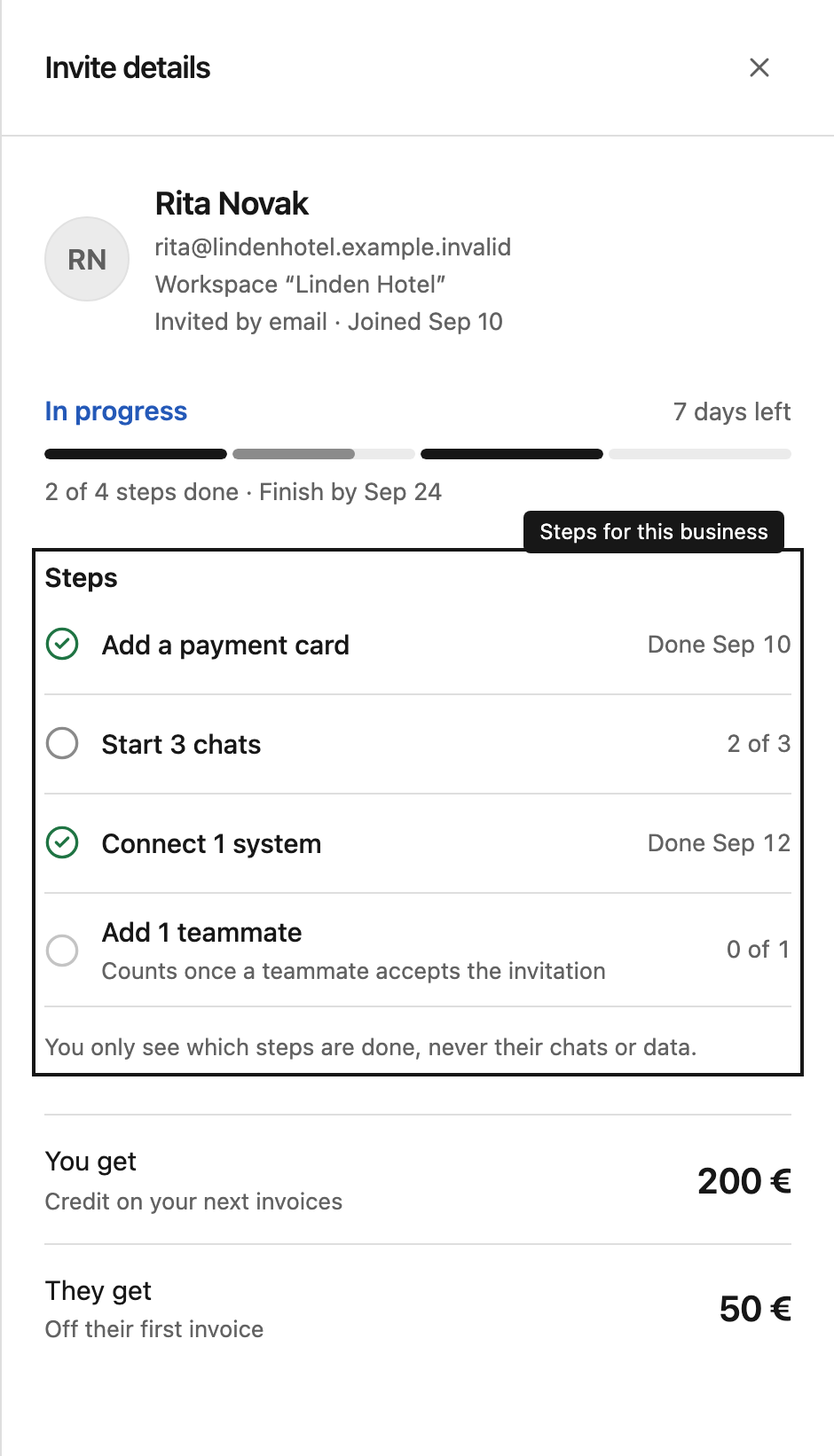
The business you invite creates its own workspace by signing up with the invited email address, through your link, or by entering your code. Then it completes the steps listed when you open How it works at the bottom of Invite & earn, for example:
- Add a payment card
- Start 3 chats
- Connect 1 system
- Add 1 teammate: a teammate counts once they have accepted the invitation and joined the workspace.
How it works also shows the time limit, for example 14 days after joining. If the steps include Pay the first invoice, that step may be done after the time limit, because the first invoice arrives weeks later; every other step has to be done in time. The steps and the time limit can change, but every invite keeps the rules that applied when it was created.
Follow each invite
Your invites shows one row per business, with the ones in progress first. Each row shows when the business was invited or joined, how many days are left (Last day today on the final day), and a thin bar with one segment per step: dark is done, lighter is started, and green means your reward was credited. The text under the bar, such as 2 of 4 steps done, says the same in words.
Select a row to see each step with its progress or the date it was done, the deadline, and the credit each side gets. You see which steps are done and when, never the other business’s conversations or data. The business you invited is told the same.
A notification tells you when a business joins with your invite and when your reward is credited.
If you were invited
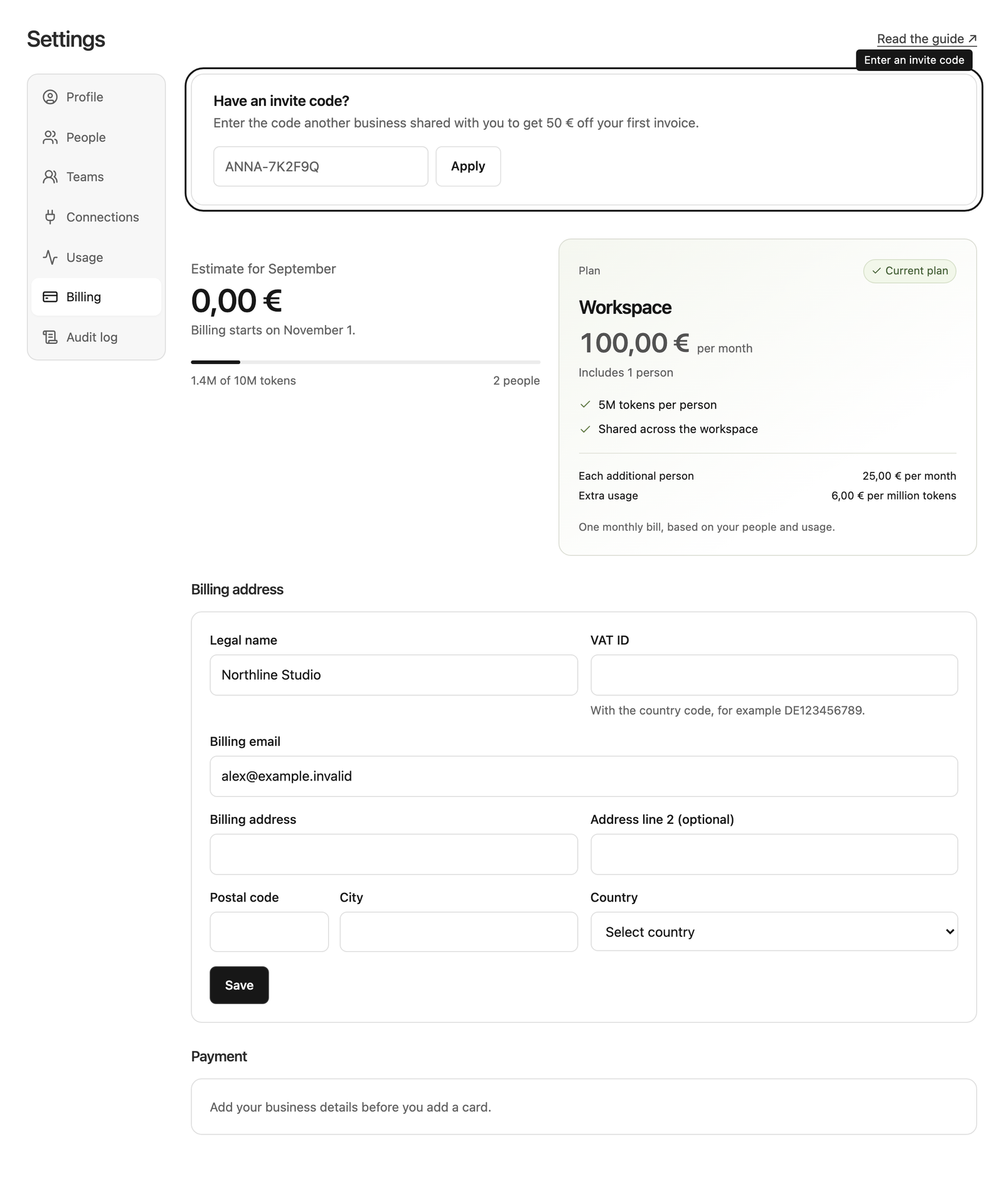
Sign up with the email address that received the invitation, or open the link you were sent. If your workspace already exists, a workspace owner or administrator opens Settings → Billing, enters the code under Have an invite code? and selects Apply. Codes work only for new workspaces in their first 30 days, before the first invoice. Only owners and administrators can apply a code, so members ask one of them.
Your welcome credit is then shown in Invite & earn, together with the steps that are left, so the business that invited you gets its reward too. A short note at the top of your workspace’s home page reminds you of them until they are done. The business that invited you sees which steps are done, never your conversations or data.
Rules and limits
- Only new businesses with their own new workspace count. Your own workspaces and teammates don’t.
- A workspace can be invited only once, and you can’t use your own code. Each person can join through an invite only once: another workspace of the same person doesn’t count again.
- If the steps aren’t finished within the time limit, the invite shows Expired and no reward is credited. The invited business keeps its welcome credit.
- Steward may check a referral before crediting the reward, for example when both workspaces use the same payment card. The invite then shows Being reviewed. If it isn’t eligible, it shows Not eligible: no reward is credited, and the invited business loses any welcome credit it hasn’t used yet.
- Each workspace can earn a limited number of rewards, normally 10. The limit counts every reward of the workspace, whoever sent the invite; once it is reached, further referrals are reviewed first.
- If Steward pauses Invite & earn, you can’t send new invites. Businesses that already joined can still finish their steps, and rewards are credited as usual. Invite & earn stays in the sidebar while you have invites to follow.
- Credit reduces your Steward invoices. It isn’t paid out.