Find your way around the workspace
Search conversations and answers, switch workspaces, and reach account options.
Search chats and answers
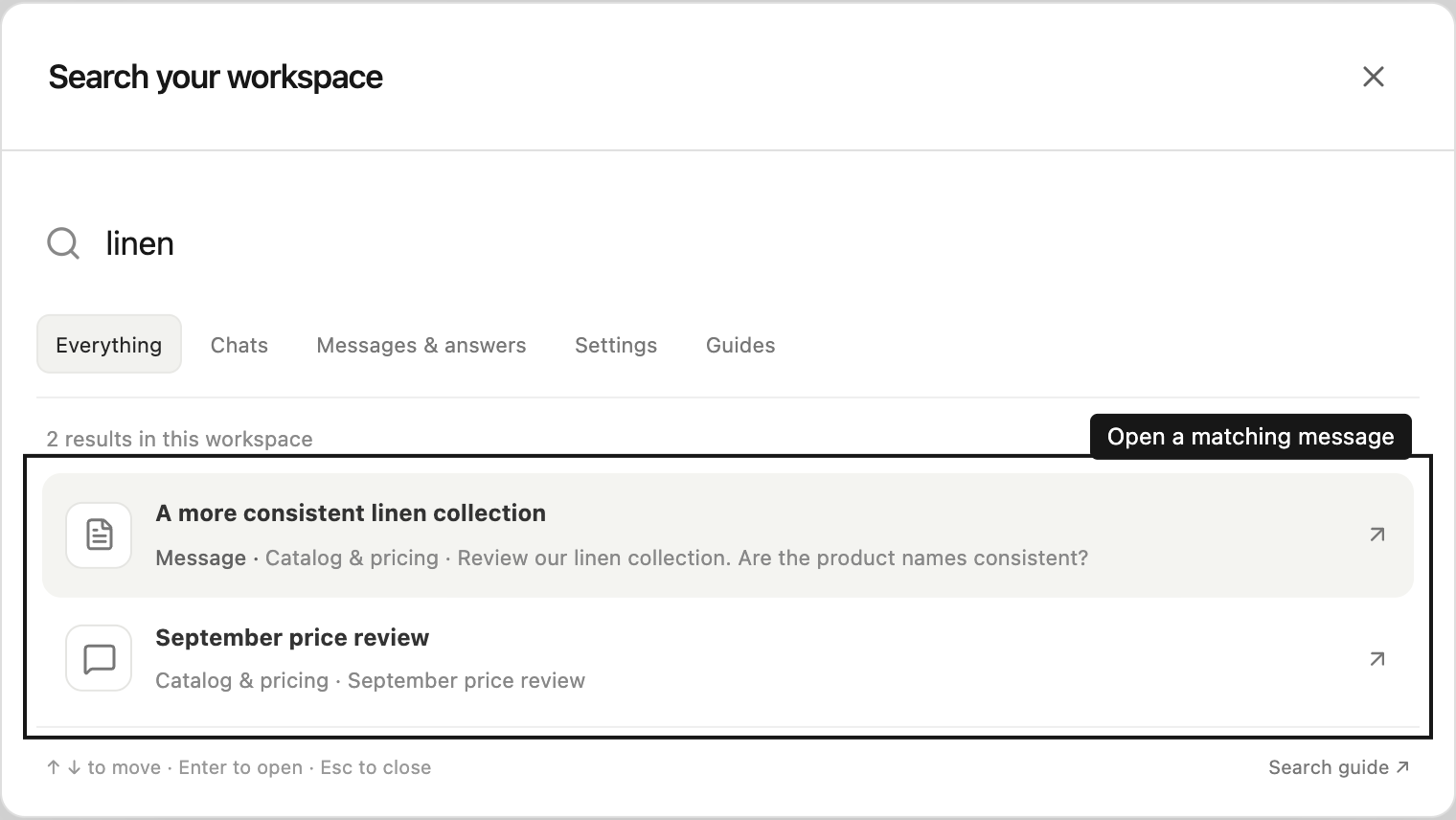
Select the search button beside the Steward logo, or press ⌘K on Mac or Ctrl+K on Windows. Enter at least two characters to search project names, chat titles, sent messages, and response text in the current workspace. Use Chats, Messages & answers, Settings, or Guides to narrow the list.
Select a result to open it. Message results jump to and highlight the matching message. Use ↑ and ↓ to select a result, Enter to open it, and Esc to close search. Settings and guide shortcuts appear immediately; history search shows a loading status while results arrive. If a request fails, select Retry search.
Search includes archived chat history and only projects you currently have access to. Unsent drafts, attachment contents, and private connection credentials are excluded. Results are limited to 40 history matches; use a more specific phrase if needed. Text matches are literal phrases or words from the message. Search covers the current workspace, so switch workspaces to search another customer or team.
Chat status in the sidebar
A spinning circle next to a chat means Steward is working on it. A pause icon means it’s waiting for someone to approve a change or answer a question.
A blue dot means Steward finished answering a message you sent and you haven’t opened the chat since. The title is shown in bold. Opening the chat clears the dot, and so does watching the answer arrive. If Steward is waiting for your approval or answer, the blue dot pulses until you open the chat. After that it shows the pause icon until you respond.
Dots are personal. Only the person who sent the last message sees them, and someone else opening the chat doesn’t clear yours. If a teammate sends a newer message in the same chat, the chat moves to them and your dot goes away. Answers from scheduled tasks don’t add a dot. The Chats page shows the same status as New answer or Waiting for you.
Account options and workspaces
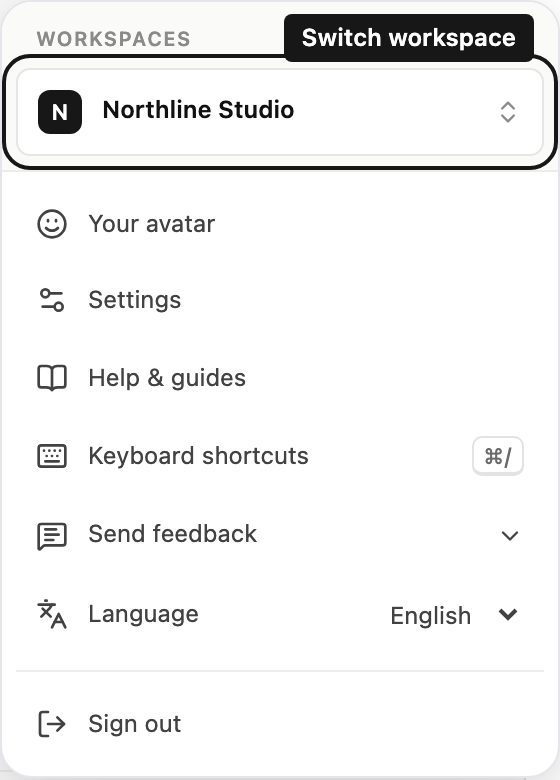
Select your name at the bottom left of the sidebar. The current workspace is shown at the top of the menu. Select it to open the list of your workspaces, where the current one has a checkmark. Select another workspace to switch to it, or select New workspace, enter a name and select Create workspace. Below the workspace, choose Settings, Help & guides, or Sign out.
Context and sharing
In a conversation header, Chat context opens notes, summaries, and bookmarks for that chat. Hover over a project row in the sidebar, open Project actions, and choose Configure to manage its details, sharing, connections, and files. Managers can see the number of people with access on the Sharing tab, including members of shared teams. Before a chat exists, Instructions also opens project details. Editing context or sharing requires the appropriate project role; viewers can inspect the available panels. See context and roles and access.
Chat titles are generated automatically. To rename, archive or delete a chat, open its ⋯ menu in the sidebar or in the conversation header; see archive and delete chats. Sent messages have no edit control. Send a clarification or guide an active run when something needs correction.