Understand usage and keep Steward up to date
Review workspace activity, refresh safely when a new version is available, and send feedback.
Review workspace usage
Open Settings → Usage to see the usage reported for your workspace. The overview includes input tokens, cached input tokens, output tokens, and requests, with a breakdown by model.
Tokens are units used to measure the information a model reads and writes. They are not the same as messages: a single request may involve several model calls.
Cached input reflects input the provider reported as reused. Costs are estimates based on published provider prices for the model that handled each request. They are not an invoice. A dash means the provider did not report enough to calculate that value.
Review image usage and limits
The Image generation section shows the estimated cost of image requests, any pending charges, and how many images were delivered. Every image request counts, including extra variants and requests that didn’t produce a file. These costs are already part of the totals above, so don’t add them again.
Workspace owners and administrators can turn image generation on or off and set optional budgets under Workspace image limits, then select Save image limits. Leave a budget at 0 for no limit. A budget stops new image requests once it is reached. A single request can still cost slightly more than the amount reserved for it. If a request’s charge can’t be confirmed, its reserved amount stays counted until the charge is reviewed.
Interpret a change in usage
Long conversations, large inputs, repeated analysis, and greater thinking effort can increase resource use. Compare the work your team asked for before assuming a change is unexpected.
A smaller, well-scoped question can often be easier to review. Use project instructions and bookmarks for background you need to keep available.
Refresh when a new version is ready
If Steward detects an updated version, a notice appears near the top of the workspace. Select Refresh when you are ready, or Later to reduce the notice while keeping the refresh action available. If you installed Steward as an app, use this notice to update it; the app updates itself and doesn’t need to be reinstalled.
The notice may wait while you finish a message edit, close a panel, complete an upload, or save other unfinished work. Read its explanation and finish the relevant action, then try again.
Keep your work safe
Before refreshing, Steward saves the latest draft locally. If saving fails or the browser is offline, it keeps the page open and asks you to retry. Keep the tab open until the issue is resolved.
Background runs remain on the server when you refresh. Returning to the chat loads their latest state. Updating one tab does not force your other open tabs to reload.
If a page cannot load a part of the interface after an update, use the offered refresh action. If the problem continues, keep the error message and report a problem, or ask your workspace administrator for help.
Report a problem or request a feature
Any member of a workspace can send feedback to the Steward team.
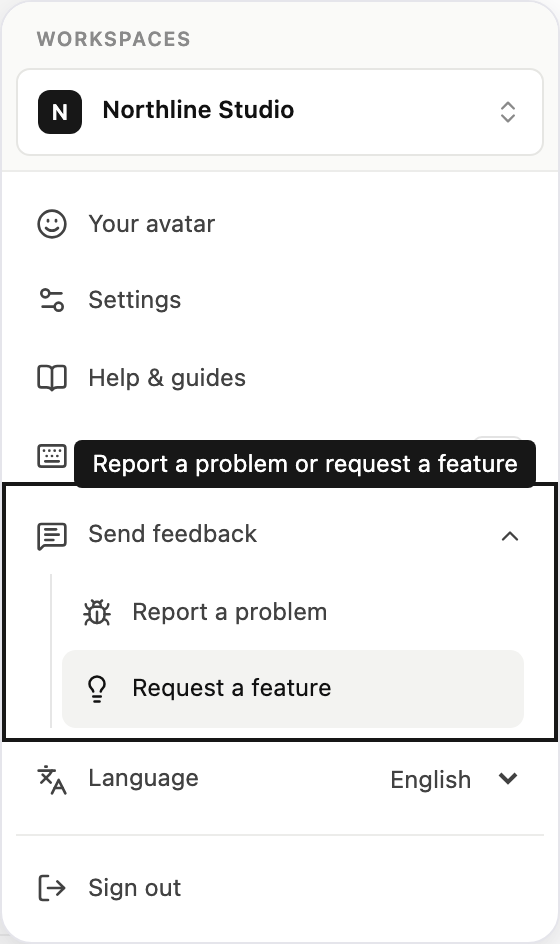
- Open the account menu at the bottom of the sidebar.
- Select Send feedback, then Report a problem or Request a feature.
- Describe what happened, or what you would like Steward to do and how it would help.
- Select Send report or Send request.
Your name and email are filled in from your account. Select Add a screenshot to include the current page and highlight or hide parts of it before sending.
To help the team investigate, each report also includes technical details: the workspace, project and conversation you have open, the page, your browser, and a short replay of your recent activity in this tab, including what was on screen.
When part of Steward stops unexpectedly, the error is reported automatically and the page shows a reference. Quote this reference if you ask for help.